Want to stop worrying about WordPress maintenance and just focus on your business and content? This guide walks you through the closest way to get to zero site maintenance by making some changes to your WordPress setup.
A WordPress site runs on a live database, theme files, and select tools/plugins. Updating each one is necessary to keep your site healthy and secure, but it takes valuable time. Sometimes, fixing a broken plugin update can quickly turn into a full day’s work.
And the bigger your site is, the more time-consuming it gets. This affects many site owners, especially after adding new tools or features.
This guide explains why WordPress maintenance always adds up, what it involves, and how to get it as close to zero as possible.
Does WordPress actually need maintenance?
Every site built on WordPress requires regular maintenance for the following reasons:
- WordPress is a dynamic content management system. It relies on web hosting, PHP, and a live database, all of which require regular updates to load your pages securely in a browser.
- You’ve likely added a lot of plugins to add extra features. Each plugin, along with your WordPress theme, receives frequent updates you need to apply. If not, your site is basically a sitting duck for common security vulnerabilities or compatibility issues that can break the layout or lock users out.
- Every time you edit a post, receive a comment, or install a new feature, the database clutters. Cleaning it up helps your site stay fast, improves the user experience, and supports your search engine rankings.
There are some concerning stats on WordPress security today. According to recent security reports:
- Roughly 90% of hacked WordPress sites were running outdated software at the exact moment they were compromised.
- WordPress plugins, especially outdated ones, were responsible for over 91% of new vulnerabilities Patchstack found last year.
Actively maintaining your site could save your business from the repeated threats posed by malicious hackers.
What does WordPress maintenance actually involve?
To keep your site running smoothly, you need to pay close attention to the following key areas:
WordPress core updates
WordPress updates are generally subdivided into two categories:
- Major releases that add new features and improve performance. You can find the current version of WordPress here.
- Minor updates that contain security patches and bug fixes.
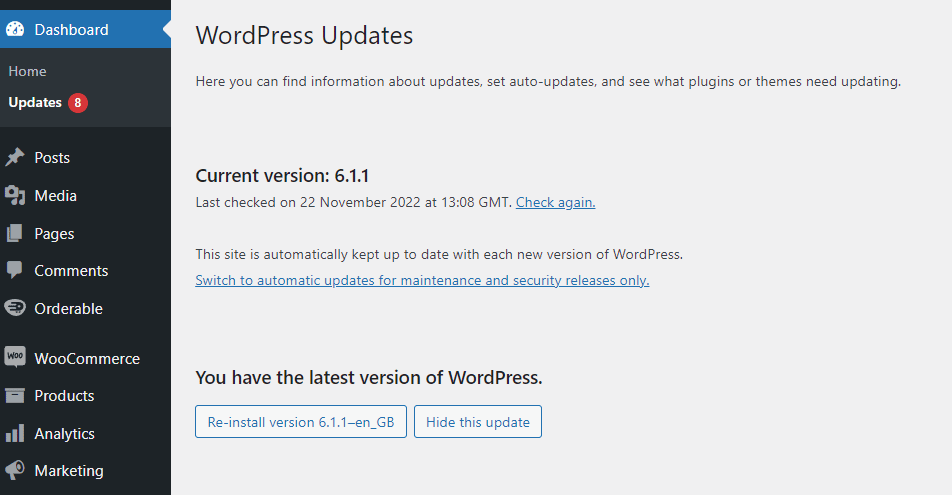
Since WordPress 5.6, new installations can automatically update both major and minor releases. However, the safest approach is to let minor security releases update automatically, while you manage major releases manually.
That’s because even though major versions are extensively tested by the WordPress team, they can occasionally conflict with some third-party plugins or themes. You can always wait a few days to see how a new release performs in the wild or until after a plugin developer patches any unexpected issues.
Plugin updates
Like WordPress, plugin developers also continually release updates containing:
- Security patches for newly discovered vulnerabilities.
- Performance improvements that make your site faster.
- Bug fixes that prevent customer-facing issues.
- New features that could improve your business operations.
You have to update each plugin as the vendor releases new versions. Keep in mind that hackers often target outdated plugins because they’re much easier to exploit than WordPress core.
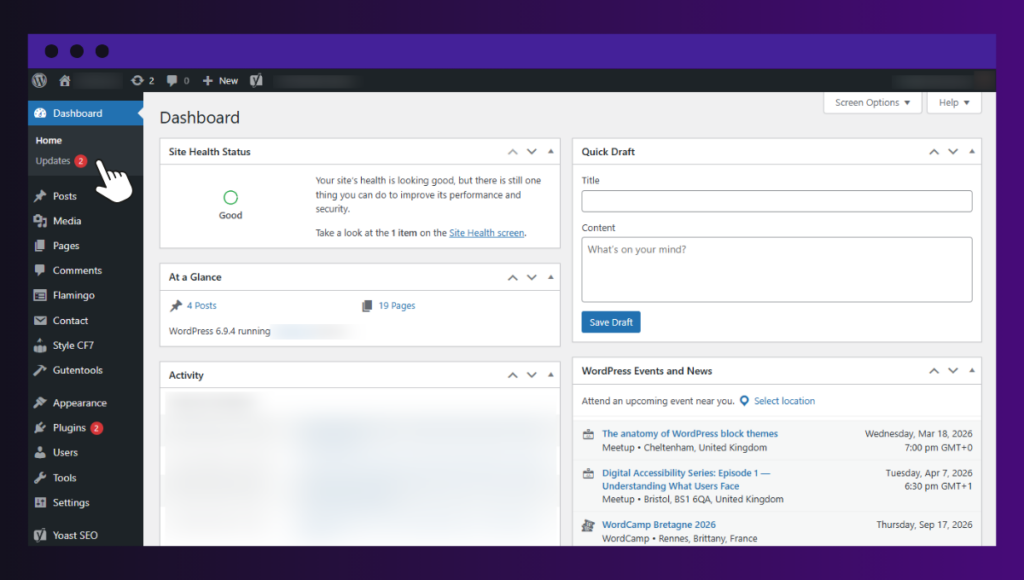
Important warning: Remove any plugin that hasn’t been updated in over a year. It’s an abandoned software and a security risk waiting to be exploited
WordPress theme updates
Themes receive regular updates too. Even if you rarely change your site’s visual design, applying these updates is essential. They ensure your theme remains fully compatible with the latest WordPress releases while keeping your code running efficiently.
How do you avoid plugin and theme conflicts?
Major updates can occasionally cause problems. A plugin may conflict with another plugin. A theme may not work properly with a newer version of WordPress, leaving your visitors staring at error messages while you scramble to fix things.
To prevent this conflict:
- Test everything first in a staging environment. Sometimes your hosting provider offers this.
- Update each item one at a time. It’s tedious, but you’ll be able to tell which ones are causing issues using this method.
- Verify that your theme and plugins are compatible with the current WordPress version.
- Always back up before updating to avoid troubleshooting later.
Security monitoring and malware scans
Because traditional WordPress is a dynamic target, you must constantly monitor it against threats. This involves running daily or weekly malware scans to catch malicious code injections.
Set up firewalls, block automated brute-force login attempts, and check file integrity to ensure unauthorized changes haven’t been made to your system files. Security plugins like Wordfence and Sucuri can catch issues early and help fix them.
Regular backups
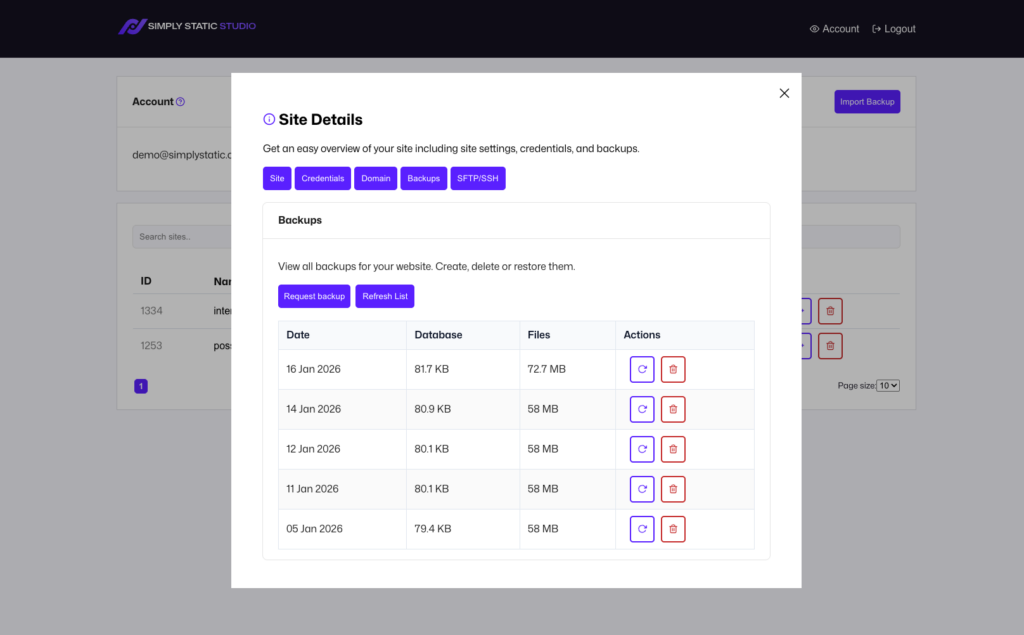
Backups are exact copies of your website that you can restore if something goes wrong. For true protection, run daily/weekly backups and store the files on a completely separate off-site server.
A complete backup must capture the entire ecosystem, including the WordPress core files, database, theme files, plugin files, and media library. The system you choose must also offer simple, one-click restoration. When a critical update crashes your site, you won’t have to waste hours recovering your files.
Performance optimization and caching
The speed on a dynamic WordPress site “degrades” with time. So, once every month, review your site speed and Core Web Vitals on Google PageSpeed Insights or GTMetrix. These tools analyze your pages and offer specific technical recommendations to boost your performance score.
This may involve:
- Cleaning up your database.
- Optimizing images.
- Integrating a CDN.
- Setting server-level caching rules. Plugins like WP Rocket help.
These recommendations depend on your unique setup. Generally, improving site performance can reduce your overall load time and boost user experience. Plus, search engines favor faster sites with better rankings.
Uptime checks
A site that’s down loses revenue, search rankings, and client trust. You can only know about an outage as fast as your monitoring tells you. For this reason, set up automated uptime monitoring with email or Slack alerts using tools such as Jetpack Monitor. This tool runs continuous uptime checks every 5 minutes. In case of a downtime, you receive a notification immediately.
Optimizing your WordPress database
WordPress stores everything in a database. Over time, it accumulates things you don’t need, such as post revisions, transients, and spam comments. To ensure your growing database doesn’t slow down your site, clean it up at least once every month.
Fixing broken links and images
External sites disappear, pages move, and image URLs change when hosting reshuffles. This results in broken outbound links and missing media that may quietly erode user experience and SEO.
You can run a broken-link checker to find broken outbound links. When you do, replace them with current sources or remove them entirely. For missing internal media, usually caused by URL changes or media-library cleanups gone wrong, restore the original file or update the reference.
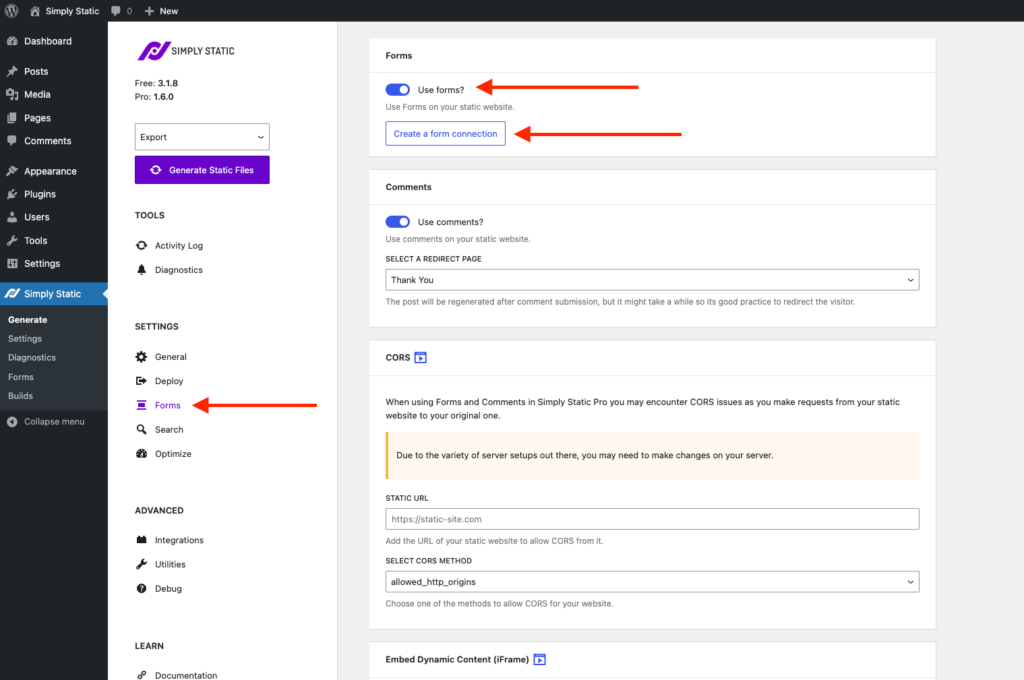
Contact form and functionality checks
Sometimes, automatic updates may break forms and buttons without you even knowing it. A contact form or shopping cart might look completely normal on the screen, but it fails to send messages when a visitor clicks submit. Regularly testing these pages yourself ensures you never lose a new customer or a sale to a broken form or button.
Generally, WordPress maintenance is the routine work of keeping the core, plugins, themes, security, site performance, and your database operations up to date and well-maintained. Each task requires ongoing commitment and time so that nothing breaks.
How long does WordPress maintenance take?
There is no single answer because every website is different. However, the table below shows a typical maintenance schedule for most WordPress sites.
| Suggested frequency | WordPress maintenance tasks | Estimated time |
|---|---|---|
| Daily | Updating content or minor changes, uptime monitoring, backups. | 30 – 60 minutes |
| Weekly | WordPress core, plugin, and theme updates, backups, performance checks, and cache cleanup. | 30 – 75 minutes |
| Monthly | Comment moderation, security scans, broken links (404 audits), PHP inspection, and database optimization. | 30 – 60 minutes |
| Quarterly / Yearly | Full site audits, SEO review, backlink hygiene, major theme updates, and so on. | 4+ hours. |
The actual time you spend on maintenance depends on your website’s size or complexity. For example, a small business site with a few pages requires far less maintenance than a WooCommerce store with many products, customers, and plugins.
We cover this in some detail in our article on the real cost of WordPress maintenance.
The important takeaway is that WordPress maintenance isn’t something you do just once and you’re finished. It’s an ongoing responsibility that demands several hours of your attention every month.
And that’s before accounting for the occasional troubleshooting sessions when an update fails, a plugin conflicts with another, or a security issue appears.
Should you use a WordPress maintenance service?
If you have the time, you can definitely handle your own WordPress website maintenance. Many people who run personal blogs and small business websites manage everything themselves.
Again, the biggest concern with WordPress maintenance is that it rarely feels like a single task.
- One day you’re updating a plugin.
- The following week, you’re testing a major WordPress release.
- A few days later, you’re investigating a slow page, cleaning up the database, or restoring a backup after an update causes problems.
None of these tasks is especially difficult on its own. They just add up over time, so a small WordPress site can take several hours a month to maintain. How about a larger website running WooCommerce or a different ecommerce tool?
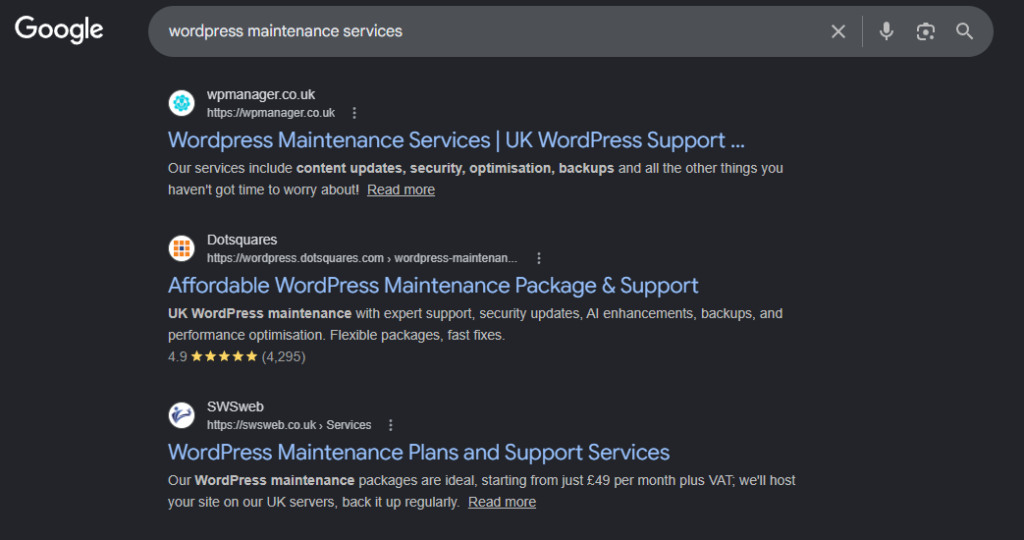
That’s why many site owners find a WordPress maintenance service helpful. These services can take a load off users’ shoulders, keeping their sites up to date and allowing them to spend their time on other areas of their business.
Your options
There are two primary ways people outsource maintenance and management of their WordPress sites.
- One option is to use a dedicated WordPress maintenance service. You can find one service that covers all the WordPress responsibilities you want outsourced. Prices can range from $39 per site to over $1,000, depending on the level of care you need.
- Your other option is to pay for a managed WordPress hosting plan (a more affordable option). The provider handles much of the technical work involved in running WordPress, including core software updates, automated backups, and speed optimization. They also offer premium customer support that is above and beyond what is usually available with standard web hosting.
The first option transfers your website maintenance to an agency or a freelancer, and the monthly fees can quickly get expensive. With managed WordPress hosting, you may still need a maintenance service on top to handle plugin updates and issues unique to your site.
What if you could cut maintenance to almost zero for a fraction of the cost of a traditional WordPress maintenance plan? For specific websites, that’s possible.
You can cut down many of the tasks that make WordPress maintenance necessary in the first place by simply changing how WordPress is delivered to site visitors.
How to get as close to WordPress maintenance zero as possible
Maintaining WordPress seems to never really end because it’s a dynamic website platform by default.
Every time a user visits, the CMS has to pull layouts and real-time content from a live database and merge it with PHP scripts to show your page. The system also checks active plugins to decide what features, designs, and tools to load.
This complex, dynamic way of displaying your site to visitors requires continuous oversight just to keep it secure, fast, and highly functional.
If we can change how a WordPress site is delivered to visitors, we can drastically reduce maintenance to near zero.
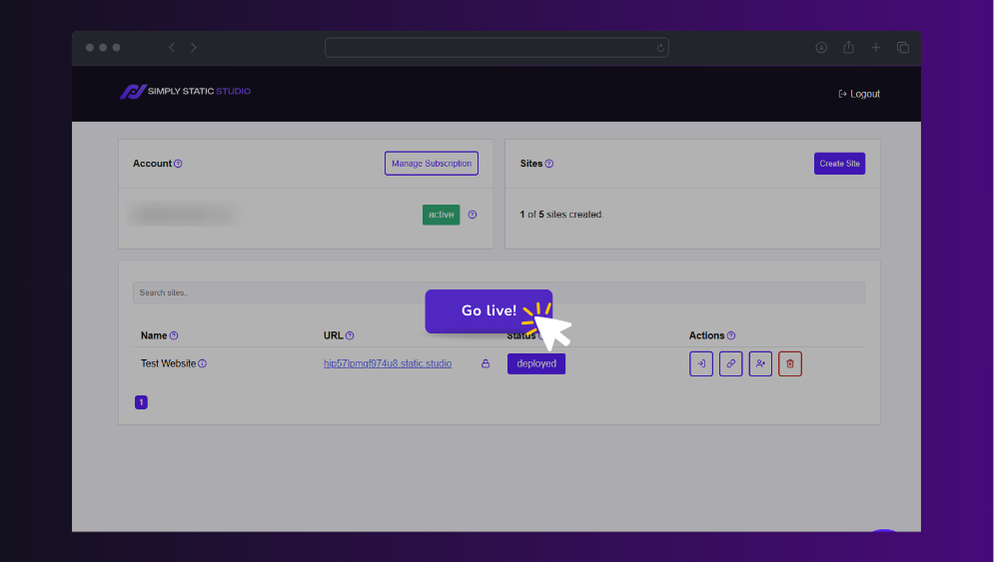
Switch to a static WordPress site
Static is the process of converting a WordPress site to static files and publishing them to the web. Your pages are generated in advance and stored on a web server as simple files. These files are readily available upon a visitor’s request, which is why static sites load much faster.
Essentially, you get to keep your WordPress site exactly as it is; it still looks and behaves the same. You can still use WordPress to update content, but your visitors see a much faster version of your site.
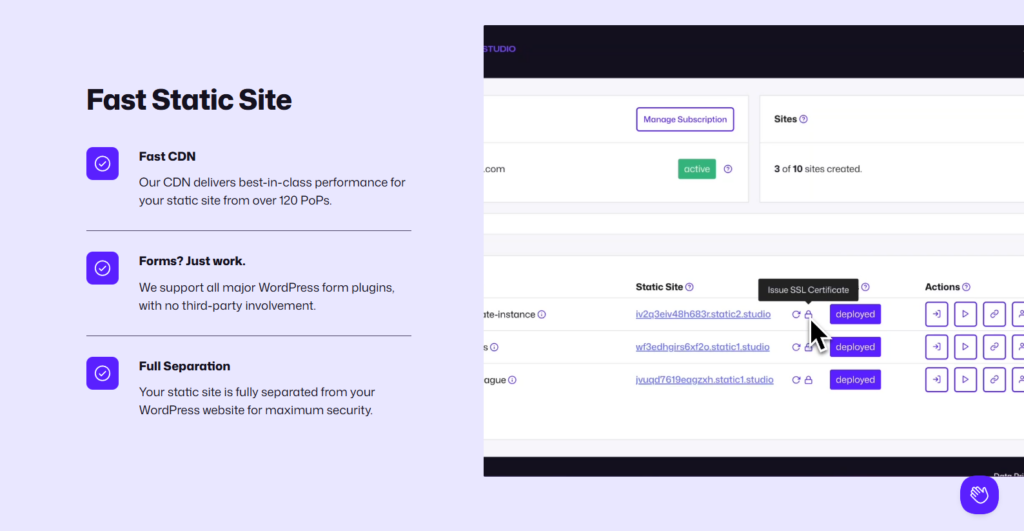
Because this delivery process disconnects your live site from WordPress itself, many of the maintenance tasks that take up your valuable time are removed altogether.
- There’s no live database involved in site delivery.
- You don’t need additional plugins to optimize, protect, and speed up the delivery process. In fact, the fewer plugins you need, the less maintenance is required.
- You’re immune to the common WordPress security vulnerabilities hackers love to exploit.
- Hosting costs less because static files put far less demand on the server.
- Static sites are also incredibly stable. For instance, if an update breaks your hidden WordPress backend, your live site remains 100% online and unaffected.
The very nature of a static WordPress setup saves you a lot of time normally spent on maintenance.
You get a site that’s virtually unhackable, loads instantly, and needs almost no attention at all. To set this up, you simply need a platform that’s designed to make static site delivery easy instead of using a static site generator plugin.
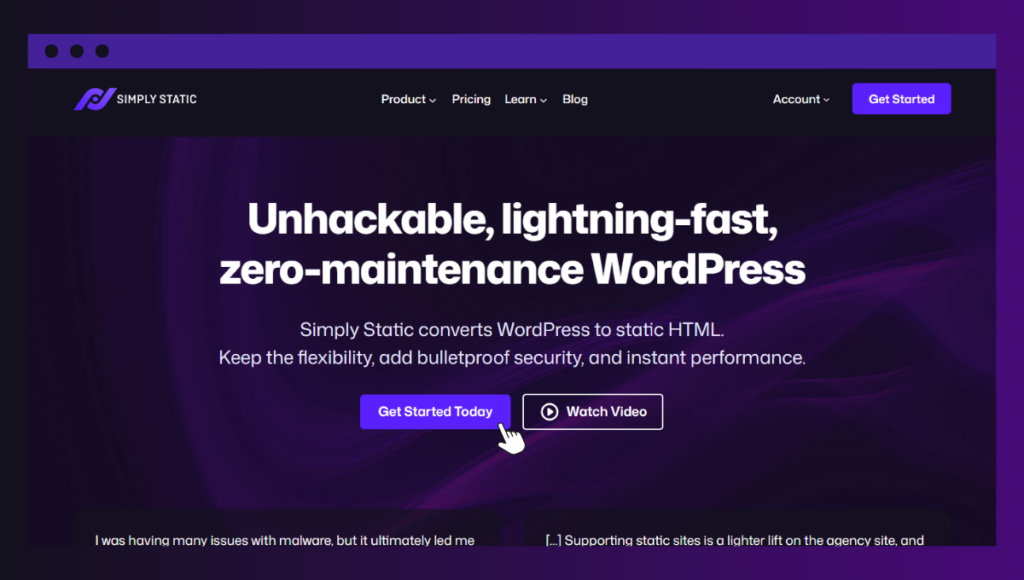
Set up zero WordPress maintenance with Simply Static Studio
Simply Static Studio is a platform that makes it easy to manage WordPress in a maintenance-free static environment.
It lets you manage your site and content in WordPress as usual, then publish a secure, static version of it to the web. It can even convert your existing WordPress site for you and optimize it along the way.
Here’s how Static Studio gets WordPress maintenance as close to zero as possible:
- It automatically separates your live site from WordPress using Simply Static, a static site generator plugin. Just upload an existing WordPress site, and the platform automatically converts it without you having to install anything.
- You get a private WordPress dashboard that’s fully hosted and managed for you. It installs WordPress for you, configures it, secures it, and updates it on your behalf.
- Static Studio is also a static WordPress host. It automatically publishes your static site to a high-performance global CDN after you connect your domain.
- Because it’s a managed platform, it automates daily/weekly backups, SSL certificates, updates, server resource allocation, and much more.
- Security and performance optimization are built into the platform. So, you can delete extra plugins for caching, minification, speed, and protection.
Because of these automations, most of the work that normally comes with WordPress maintenance is either handled for you or removed entirely.
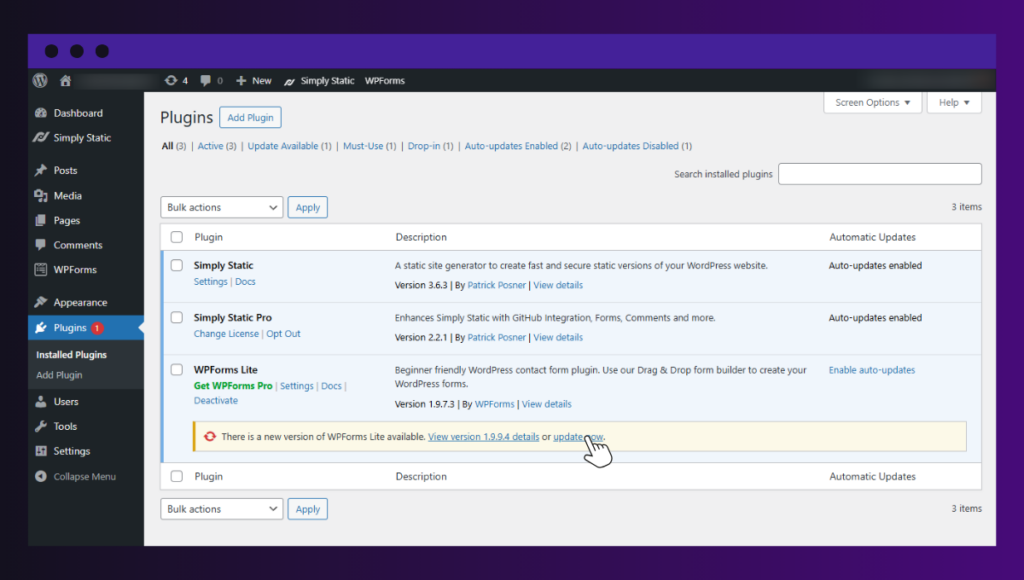
Why Simply Static Studio stands out
Simply Static Studio stands out for being more than a static site generator. It combines static site generation, managed WordPress, and static hosting in a single platform. That means you don’t have to piece together different tools or manage the technical setup yourself.
Why should you use it?
- Hands-off setup. You have your private WordPress install and instantly publish static files to a global network. You also get a remote dashboard to manage as many static WordPress sites as you want.
- Forms and search still work. Static sites usually break interactive elements, but Simply Static Studio includes built-in tools, so your contact forms and search functionality keep working perfectly.
- It’s easy to track site performance. Static Studio automatically optimizes your site for speed, and you can track your page speed, TTFB, and usage on a performance screen to see how your site performs.
- A hidden security wall. Visitors only interact with the safe, static pages. Your actual WordPress login screen is completely hidden away from the public and hackers.
- Full access to developer tools. Those developers who prefer working close to the server have SSH and SFTP access. You can also create different environments to test your static site before making changes live.
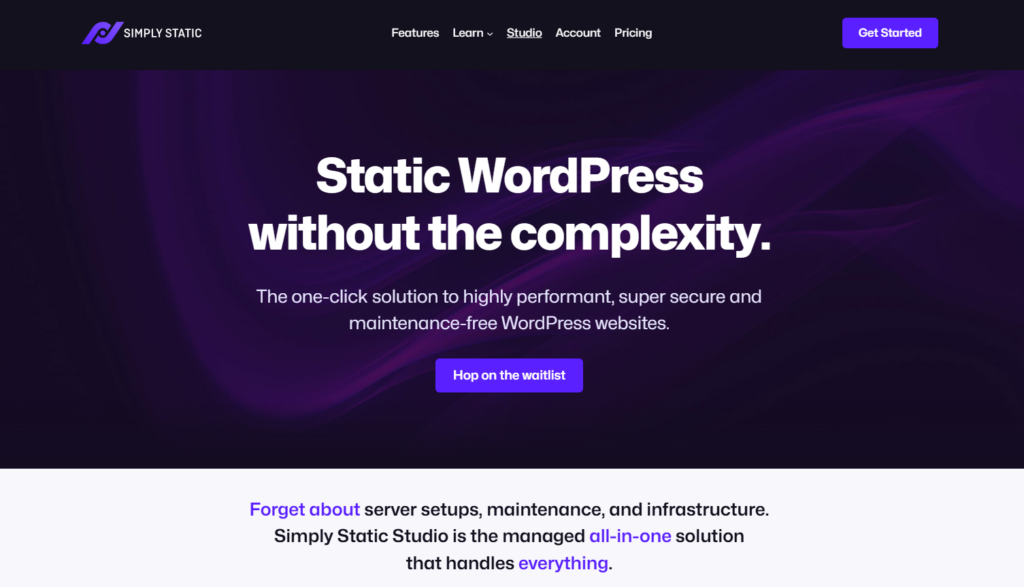
Get to WordPress maintenance zero
The absolute best way to get WordPress maintenance to zero is to change your current dynamic WordPress site into a static one.
As long as your WordPress site is delivered dynamically, you’ll always have updates to manage, security risks to monitor, a database to maintain, and performance issues to optimize.
Simply Static Studio turns your existing WordPress site into a static website. The platform manages WordPress for you and automates many maintenance tasks that would otherwise take up your valuable time.
If your site must stay truly dynamic, because you have user accounts or shopping carts, the closest you can get to near-zero maintenance is to pay for a WordPress maintenance service plus a managed WordPress host.
Table of Contents