Looking for WordPress security tips to make your WordPress site more secure in 2026? This article is here to help.
You may have done your part to secure your WordPress site by installing a security plugin, updating your themes, and picking a secure hosting provider.
But some security issues might still slip past, especially in the areas you might not expect. In this guide, we’ll walk you through WordPress security tips and highlight areas you should check at least once a year.
Here’s what we’ll be covering:
- 5 WordPress security tips to check once a year.
- How a static WordPress website reduces what hackers can target.
- A WordPress security checklist you can come back to yearly.
Let’s begin straightaway with the first tip: reviewing your plugins.
WordPress security tip 1: Plugins you no longer think about are often the riskiest
The WordPress core is relatively secure. Security issues in WordPress often (but not always) come from plugins. In fact, WordPress vulnerability databases reveal that plugins are responsible for 90% of vulnerabilities found in WordPress sites.
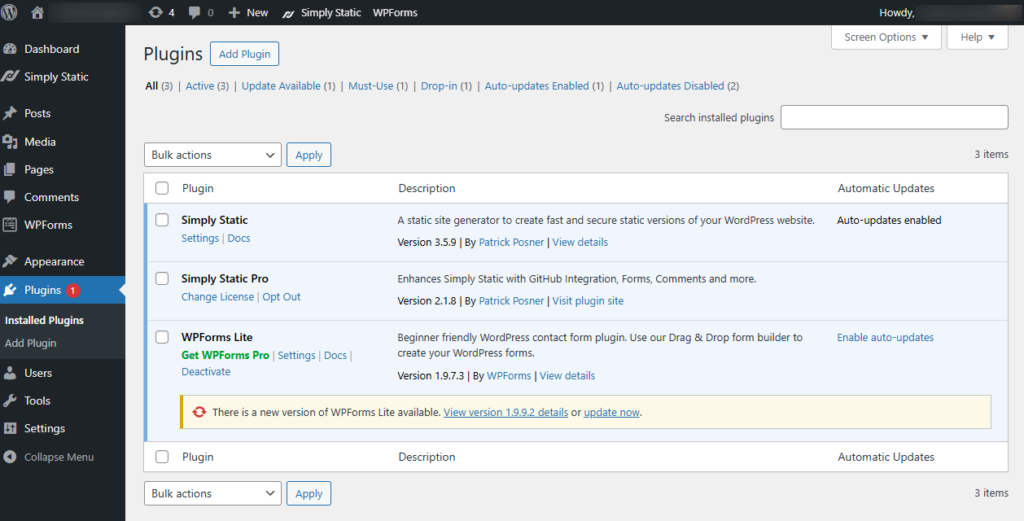
Why inactive or forgotten plugins are a security issue
Regardless of how you set up your WordPress site, you usually start with a few plugins.
Over time, you’ll probably keep adding plugins to:
- Test a feature. For example, a plugin for A/B testing for a marketing campaign landing page.
- Solve a temporary problem. Let’s say a maintenance or lockdown-mode plugin for troubleshooting your site.
- Add a new feature or function. For example, an improved checkout or social media feed.
It’s common to leave these plugins installed after they’ve served their purpose as a ‘just in case’. The problem is that you’ll end up forgetting about them completely and have plugins you don’t even remember installing.
More plugins mean a wider attack surface
What is an attack surface?
An attack surface is the total number of places where someone could try to break into or misuse your website. This includes things like login forms, plugins, APIs, server settings, and any feature that accepts input or connects to other systems.
If you have many plugins, this can create a security risk because attackers have more plugins to target. Plus, when you don’t think about a plugin anymore, you won’t be updating it. No updates means security vulnerabilities pile up.
It gets worse if you’ve forgotten an installed plugin that the developer has abandoned. The developer no longer releases new versions to fix vulnerabilities. This leaves you with an outdated, unpatched plugin that may contain vulnerabilities.
So what’s the solution here? Review installed plugins regularly, at least once a year (at a minimum).
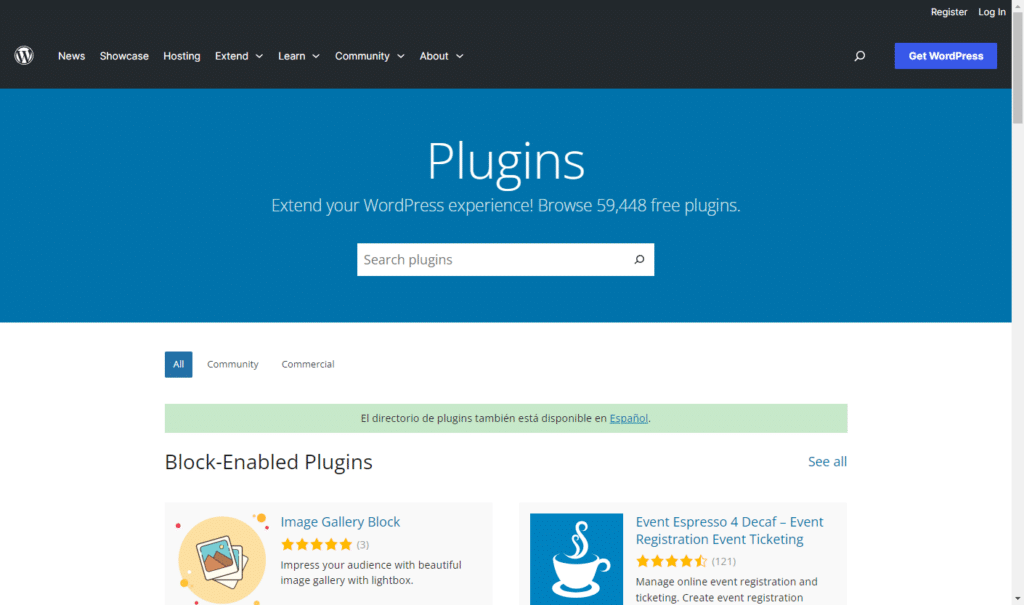
What to look for in a yearly plugin review
As you review your plugins, ask yourself the following questions:
- Is the plugin still needed today?
- Does the developer actively maintain it?
- Does it overlap with another plugin? This is to check whether you’ve installed two or more plugins that do the same thing.
- Is it inactive?
Generally, if you can’t really explain why the plugin exists in your WordPress site, it probably shouldn’t.
Remove unnecessary plugins
Each additional plugin increases the number of targets a hacker can attack. It doesn’t matter if it’s well written. If you’re not using it, uninstall it
Doing so not only reduces your website’s attack surface but also:
- Makes updates easier and less risky.
- Improves your site’s performance.
- Makes security issues easier to spot when they do occur.
So before you add layers of protection, start by removing what you don’t need.
Security tip 2: Old user accounts are an easy thing to miss
Old user accounts are accounts that still have access, but there’s no clear reason for them to still exist on your site.
In a WordPress site, a user account becomes ‘old’ when:
- The account owner no longer works on the site. It could be an account belonging to a former employee or a past contractor.
- There are no logins for months or years. Their last activity occurred well before the major site changes.
- The account is tied to older processes, for example, integrations you no longer use.
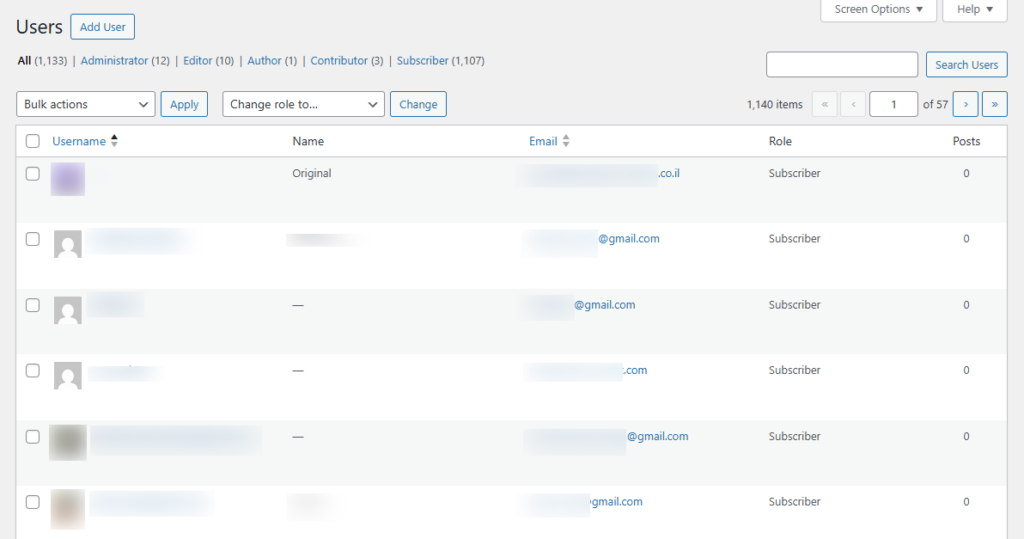
Why are old user accounts a website security risk?
Old user accounts become attractive to hackers because:
- They’re less likely to be monitored. If an attacker attempts to obtain credentials or use them to log in, it doesn’t raise suspicion.
- They may retain outdated access policies. Let’s say you introduced multi-factor authentication later. Since you don’t actively maintain these accounts, you’ll fail to add this access policy.
Leaving old user accounts is a threat to your WordPress site’s security. Attackers can use them to easily breach your site. They don’t have to put in the work to install malware or get past your web application firewall (WAF).
The old user account in their control bypasses all the security features you’ve implemented for them. This is why it’s important to identify and remove old user accounts regularly.
If you find any of these, remove them. As a WordPress security best practice, keep user roles tight and access temporary. When adding new users, ensure you grant them only the permissions they need to do the job.
Tip 3: Your login page might need some attention
Your WordPress login page is a constant target for attackers for two main reasons:
- It’s easy to find. Every WordPress site, including yours, exposes a predictable login path by default (wp-login.php and wp-admin). When hackers want to get access to your website, they don’t have to look for your login page. It is usually exposed by this URL: your-site.com/wp-login. So, they can launch brute-force attacks and try to guess user names (username enumeration) on this page.
- A successful login means total control. If they successfully break through, they can access the WordPress admin backend (wp-admin). With this, they can do a lot, including uploading files, editing files, or finding the wp-config file to access the database.
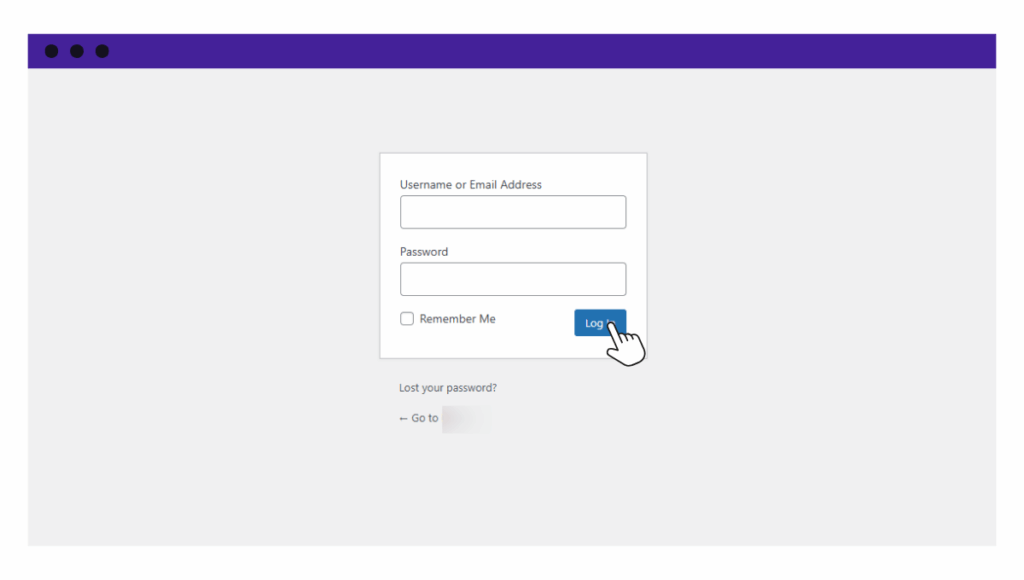
How can you protect your WordPress login page?
Seeing as your WordPress login page protects your entire website, how can you ensure login security?
There are several ways to do this, including:
- Change the login URL. Plugins like WPS Hide Login allow you to change your WordPress site’s login URL to something unique, like site.com/jupiter-99. This makes it difficult for attackers to find your login page.
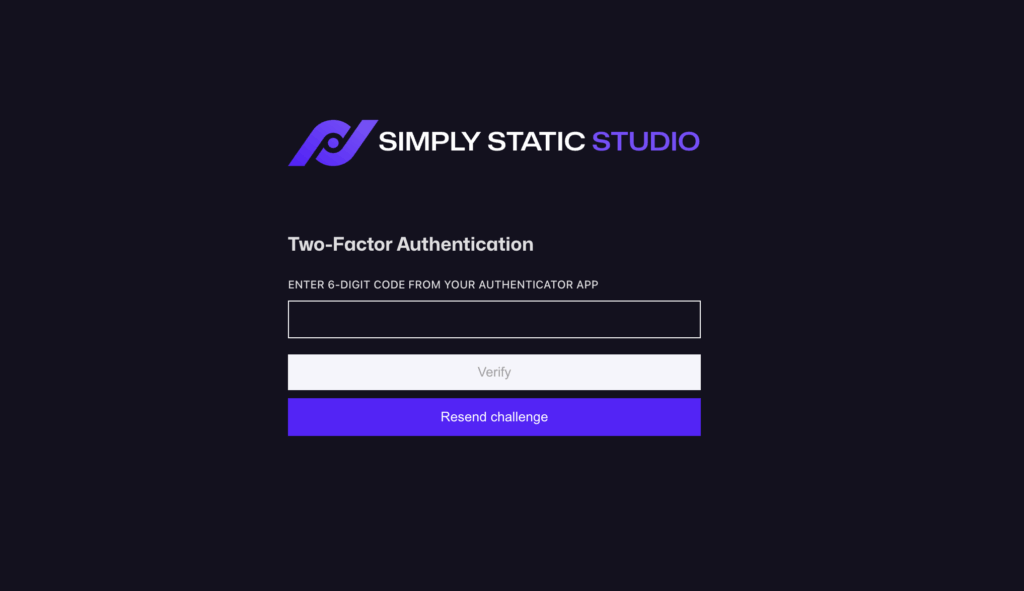
- Add two-factor authentication. This will prevent attackers from logging in even if they successfully guess your login credentials. They’ll still need a code from your phone (or another device) to get in.
- Limit login attempts. WordPress is vulnerable to brute-force attacks because it allows an infinite number of login attempts. You can use a plugin to limit login attempts and prevent this.
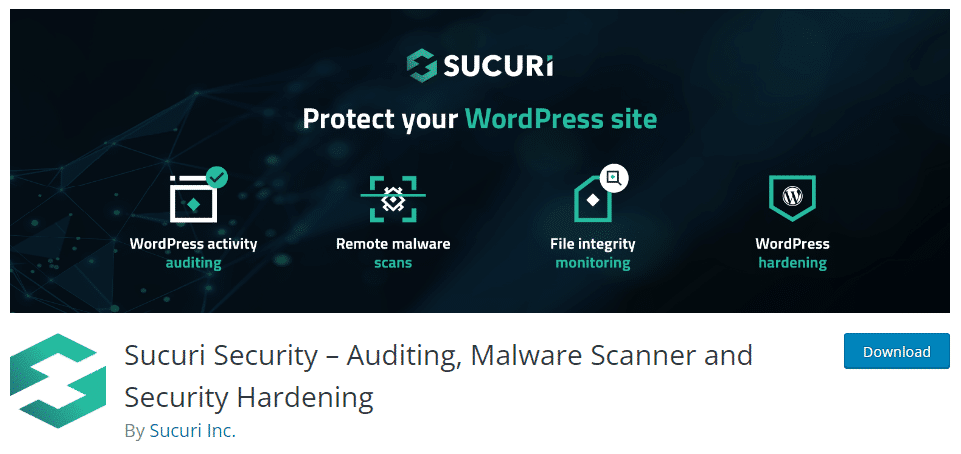
- Add a WAF (web application firewall). With WordPress security plugins such as Sucuri Security and Wordfence, you can add a WAF that blocks malicious IP addresses before they reach your login page.
- Rename the ‘admin’ user. As the site owner, WordPress automatically assigns you the ‘admin’ username. You should change this to something more unique to prevent hackers from guessing your username.
With these security features, you can add layers of protection that make it harder for hackers to get past your login page.
WordPress security tips 4: Security tools can’t protect what your site openly exposes
Your WordPress site exposes more than just your homepage and login screen. There are often extra doors open that you may not even realise are there.
Depending on your setup and plugins, this can include:
- REST API endpoints.
The REST API is a built-in feature that lets other apps or systems request data from your site. For example, it can send or receive comments, posts, or user data. If you are not using certain features, such as comments, the related endpoints may still be publicly available unless you disable them. - XML-RPC.
This is an older connection method that allows remote tools to communicate with your WordPress site. It was useful in the past for things like publishing from external apps. Today, it is often targeted in password-guessing and traffic overload attacks. - Site metadata.
This is background information about your website, including your WordPress and PHP versions, server type, and plugin names. Attackers use this information to look for known weaknesses in specific software versions.
Security plugins and firewalls respond to incoming requests based on rules. If a request does not clearly break those rules, it may still be allowed. For example, a request to a public API endpoint can appear normal on the surface, even if its intent is not.
A firewall cannot make something private if it is already public. If an endpoint is exposed, it is accessible. That is why reducing what your site exposes in the first place is just as important as installing security tools.
Reducing exposure is more important than blocking traffic
We know that blocking traffic is one way to protect your site, but it won’t secure what you expose. So you’ll want to reduce exposure as much as possible. We’ve already covered some ways you can reduce risk, such as removing unnecessary plugins and limiting the login page to private access.
For API endpoints, XML-RPC, and metadata, you can disable them right from specific themes and plugins (although XML-RPC is usually disabled by default).
Reducing exposure is a better way to secure your site because it can eliminate an entire class of attacks. Later, we’ll cover how to limit backend-targeting attacks entirely using static WordPress websites.
Tip 5: Adding more plugins doesn’t always equal more secure
You could end up adding multiple security plugins to your site while trying to boost security. Perhaps you’ve faced several security incidents and added a different security plugin each time.
Let’s say:
- You become a victim of a phishing attack and add a plugin to scan malware.
- Your site is targeted by a DDoS attack, and you install another to add a firewall.
- You fall victim to cross-site scripting (XSS), and you add another layer of protection for login forms.
Or, marketing claims such as ‘all-in-one’ may have convinced you to keep adding more plugins. In other cases, some WordPress hosting providers will push for specific security solutions as you purchase plans from them.
Here’s why adding more plugins isn’t always a good thing.
Why is it that more security plugins don’t mean better security?
Most WordPress security plugins do the same things (add WAF rules, block IPs, etc.). When you install multiple, they won’t work together. Instead, each will assume that it is the only one protecting the site.
They then don’t cover any new attack surface, just duplicate work. Every request that comes in has to pass through multiple duplicate firewalls. This increases the page load time. Not to mention, security plugins are usually heavy. This increases the resources your site consumes and slows page load time.
Ensure your site isn’t overprotected
If you review your plugins and find multiple doing the same job, it is a sign that your site is overprotected. And, this is the right time to simplify. You can simplify by having one main security plugin and hosting-level protections where appropriate. This setup is easier to audit and maintain over time.
Or, consider our next approach.
WordPress security tips 6: Static WordPress removes things attackers look for
If you’re looking to significantly improve your WordPress site’s security, increase its performance, and save yourself hours of maintenance work, making it static is the way to go.
What is a static WordPress website?
A static WordPress website is a version of a traditional dynamic WordPress site that has been converted to static content.
How does this work?
- You install WordPress and create your website as usual.
- Using a static site generator, you convert your dynamic WordPress site into fixed HTML, CSS, and JavaScript files (for the frontend).
- These files can then be stored in a CDN.
- When a user visits the website, the web server fetches these files as they are.
This setup separates your public-facing website from your WordPress installation. Site visitors interact only with the public website, which consists of fixed, prebuilt files. WordPress remains where you create and manage content.
A static WordPress site eliminates several attack targets and surfaces
When your WordPress site is static, many common targets are completely removed from the public site, including:
| Common target | How it’s removed in a static site |
| Database exposure | No database is involved in loading the website. This secures your site from backend-targeting attacks like SQL injections. |
| PHP file executions | There’s no server-side processing to load pages. So, PHP execution is excluded from the website loading process. |
| Plugin and theme vulnerabilities | These only run when converting your site to a static website. |
| REST API exposures | REST API isn’t deployed. |
| File upload attacks | No file uploads are accepted. |
| WordPress login page | No database is involved in loading the website. This secures your site against back-end targeting attacks such as SQL injection. |
Because of this, you won’t have to do much of what we’ve discussed here, for example, securing the login page or reducing exposure. If you want to make your WordPress site static, Simply Static is a straightforward way to do so.
Make your WordPress site static easily with Simply Static Studio
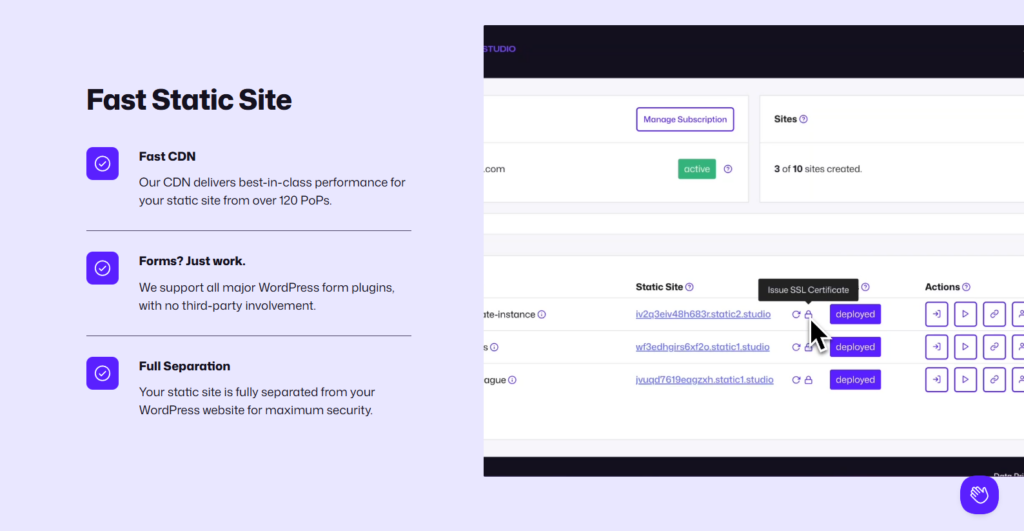
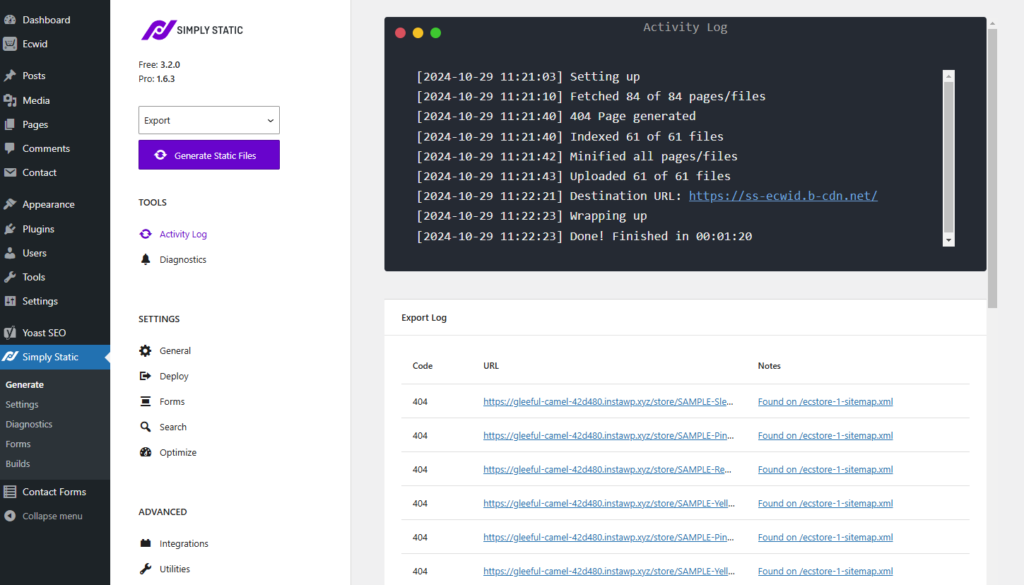
Simply Static eliminates exposure points on your WordPress site by converting it to a static site within minutes.
Simply Static then inherently removes backend access points and server-side features from what public visitors see. This effectively eliminates those exposure points on the public-facing site rather than “disabling” them in the WordPress dashboard.
Why should you use Simply Static?
Simply Static is a great option for making your site static for the following reasons:
- Your site won’t be just static. You’ll be able to use dynamic features such as forms and search.
- You can keep using your preferred SEO and form plugins and page builders.
- It includes performance-optimization features such as code minification and image optimization.
- After making your site static, you can host it anywhere you like, including CDNs, Amazon S3, GitHub Pages, etc.
Simply Static makes all of this easy. With this plugin, you’ll enjoy fast and secure static sites that are easy to set up.
There we have it. Six WordPress security tips you should check at least once a year. While these tips are helpful, remember to follow best practices such as strong passwords, SSL certificates, and regular backups.
A yearly WordPress security checklist you can reuse
To recap, here is an annual WordPress security checklist you can always refer to.
| Review area | What to review |
| Plugin and dependency review | Remove unused and inactive plugins and themes, replace abandoned plugins, and reduce overlapping functionality. |
| User and access review | Remove inactive users, review administrator accounts, tighten roles, and enforce strong credentials |
| Login and exposure review | Review public access to the WordPress dashboard, REST API, XML-RPC, and exposed metadata. |
| Backup and recovery review | Confirm backups exist, are stored off-site, and can be restored successfully. |
| Hosting and architecture review | Review PHP versions, file permissions, server headers, and deployment setup. |
| Does static WordPress make sense? | Assess whether WordPress still needs to be publicly exposed or can be used purely as a CMS. Find out: Are you spending more time securing WordPress than using it? How often do you update content? Do you need real-time dynamic features? Is performance a priority? |
Keeping WordPress security manageable over time
Regular reviews are important to your WordPress website’s security. To truly improve your WordPress site’s security, you need to know what to review. In this guide, we’ve covered some of the things you should cover at least once a year, including your login page, unnecessary plugins, and limiting exposure.
The Simply Static plugin allows you to convert your WordPress website to a static site and limit what you expose. With a static site, WordPress exposes several parts by default, which eliminates entire classes of attacks that hackers can perform on your site.
As you conduct your review, determine whether a static WordPress site makes more sense. Then use Simply Static to convert your WordPress site to static pages.
Try static WordPress hosting free for 7 days
No credit card. No maintenance. No headaches.
Table of Contents