If you’re looking for help determining if your WordPress security is up to scratch and your site is secure, this article is here to help.
Running some strategic WordPress security checks can quickly reveal how exposed your site is. Whether that means fixing small issues, tightening access, or rethinking how your site is set up.
In this guide, we’ll walk you through simple checks you can run in under an hour to:
- Identify common WordPress security risks.
- Spot pluginA piece of software that adds specific features to WordPress., themes, and login-related issues.
- Understand how your hosting setup affects security in the long term.
By the end, you’ll have a clear picture of how secure your WordPress website really is and what steps are worth taking next.
Let’s start with some quick WordPress security and hosting checks you can run.
Quick WordPress security and hosting checks you can do
To help you understand where your current WordPress site security stands, we’ve compiled a list of questions to get you there. Most of these checks should take a few minutes and do not require any technical knowledge.
We’ll start with the most important check: the version of WordPress you’re running.
Is your WordPress version and core files up to date?
The goal of this check is to have zero pending updates for your WordPress core, plugins, and themes.
Over 61% of hacked WordPress sites were running outdated software. Old plugins, themes, and core files can create security gaps that make your site an easy mark for attackers.
To combat this, WordPress frequently releases minor updates to address newly discovered security vulnerabilities.
Check the latest version of WordPress
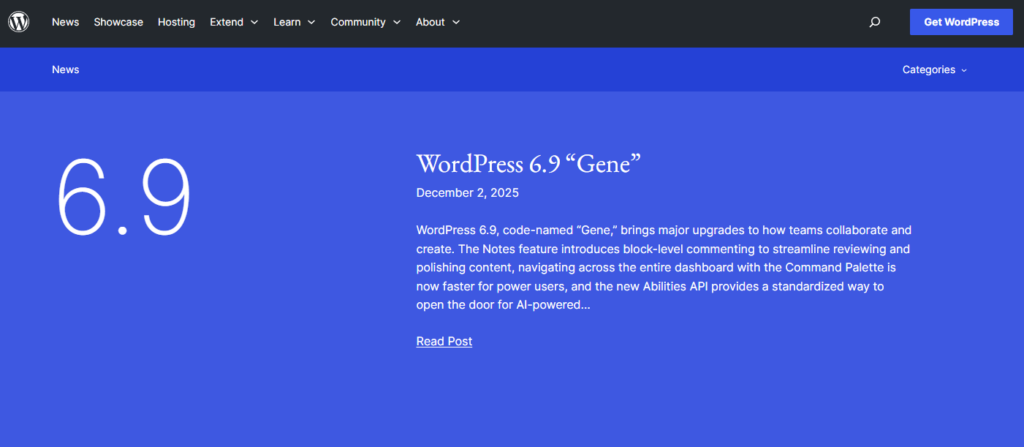
First, check what the latest version of WordPress is. To do this, you can look at the official WordPress site.
To then check if yours is up to date, log in to your dashboard and go to Updates. This page shows the current WordPress version you’re running and lists all the plugins and themes that need updating.
Update everything to make sure your site has the latest security patches, bug fixes, and improvements.
Quick tip: While you’re at it, enable automatic updates for minor WordPress releases. Automatic updates take out the hassle of updating your WordPress installation manually.
Are your WordPress plugins and themes creating security risks?
97% of WordPress vulnerabilities are tied to plugins. 70% stem from outdated or abandoned ones.
Plugins and WordPress themes can be the weakest link in WordPress security. So, aside from updating them, check if the plugins you’ve installed:
- Haven’t been used for more than 30 days.
- If they are actively maintained or not.
- Come from untrusted sources.
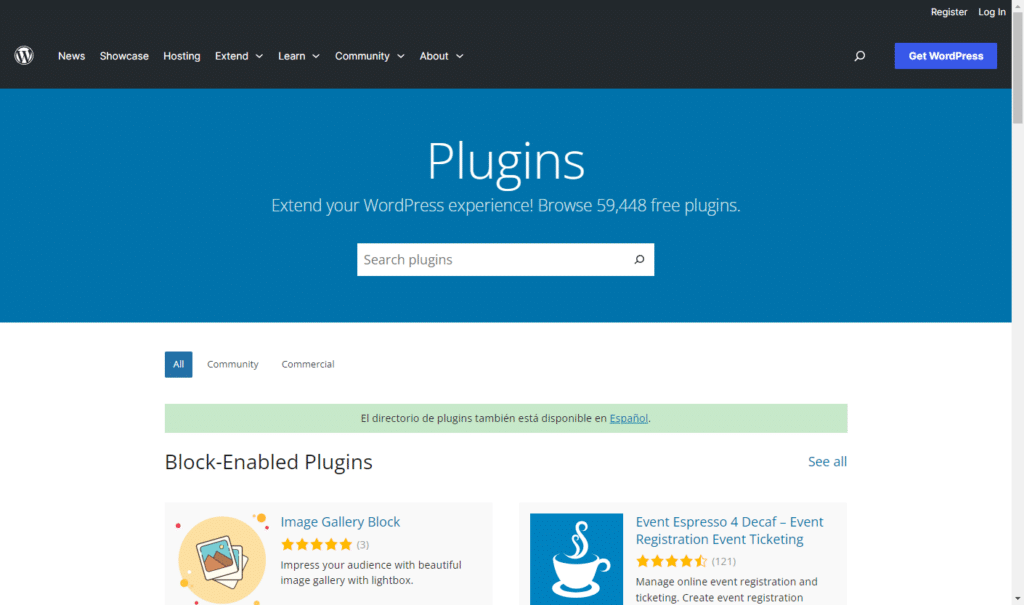
Reviewing your plugins and WordPress themes for these red flags will help you keep only safe and trusted extensions installed on your site.
This can protect you from known vulnerabilities like malicious owners, SQL injections, and cross-site scripting (XSS).
Quick cheat sheet to vet plugins
Here’s a quick cheat sheet to vet a new plugin you want to buy in under 60 seconds before you hit install.
| What to check | Green flag | Red flag(s) |
| Last updated | If it was last updated within the last 3 to 6 months, it’s generally safe. | Over ‘1 year’ ago is a potentially abandoned tool. |
| Active installs | Thousands of users show a community you can trust. | Very low installs for an old plugin. |
| Tested up to | Matches the current WordPress version. | Only tested with very old versions. |
| Support forum | Developers are replying to bug reports. | Pages of unresolved security issues. |
| Source | Official WordPress.org or known developers. | Third-party freemium (nulled) sites. Never download pro plugins from anywhere other than the developer’s official site. |
| Permissions | Only ask for relevant access. | For example, a simple widget asking for admin rights is a big warning sign. |
Keep in mind that the fewer plugins you have installed, the more secure WordPress sites tend to be. You’ll have less code to audit, far less plugin bloat, reduced exposure, and fewer plugins to manage.
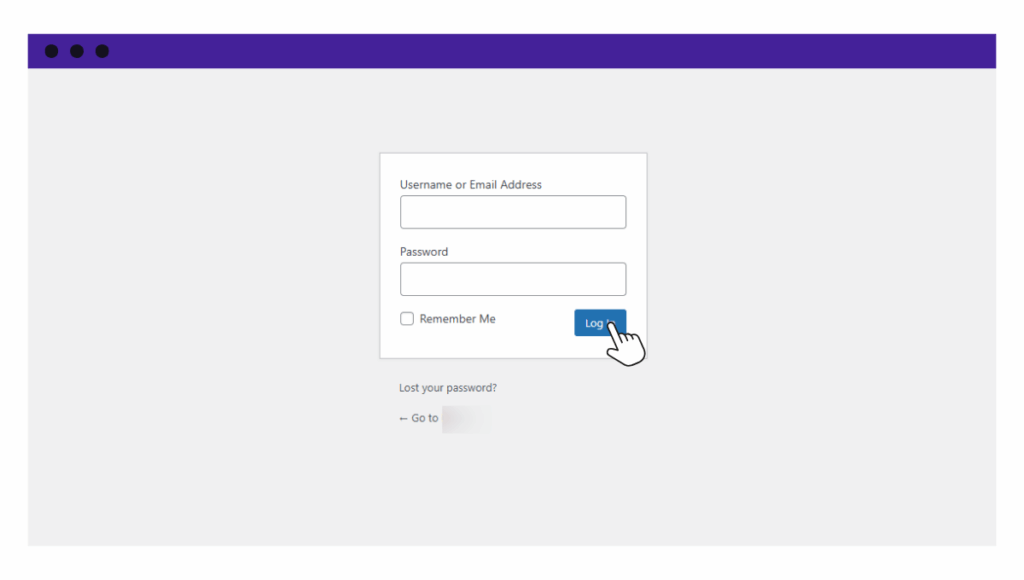
How exposed is your WordPress login and admin area?
To determine how exposed your login page is, check if any of the following:
- You’re still using the default login URL at yoursite.com/wp-admin or wp-login.php.
Make it a custom URL to avoid exposing yourself to automated bots that scan these specific URLs across millions of sites every hour to attempt brute force entries. You can change your login URL using a security plugin or a dedicated login URL plugin. - You do not limit login attempts.
The login page is considered ‘secure’ if it automatically locks after 3 to 5 login failures. Enable login attempt limits through your security plugin or hosting dashboard. This should apply to both /wp-admin and XML-RPCXML Remote Procedure Call. A protocol that uses XML to encode the calls and HTTP as a transport mechanism. if it is enabled. - You’re using weak login credentials.
Make sure you use a strong password and username that people can’t easily guess. Rename default admin usernames where possible. - You don’t have two-factor authentication enabled.
Enable two-factor authentication for all admin and editor accounts using a plugin such as WP2FA. Prioritise accounts with full backend access. - You have many admin or editor accounts with backend access.
Every admin or editor account increases your attack surface. Audit your user list regularly. Downgrade roles where possible and remove inactive accounts.
Most importantly, ensure your site connection is secure via SSLSecure Sockets Layer. A technology that encrypts the data transferred between a user and a website. encryption. Without SSL, information such as login credentials can be easily intercepted while it is being sent.
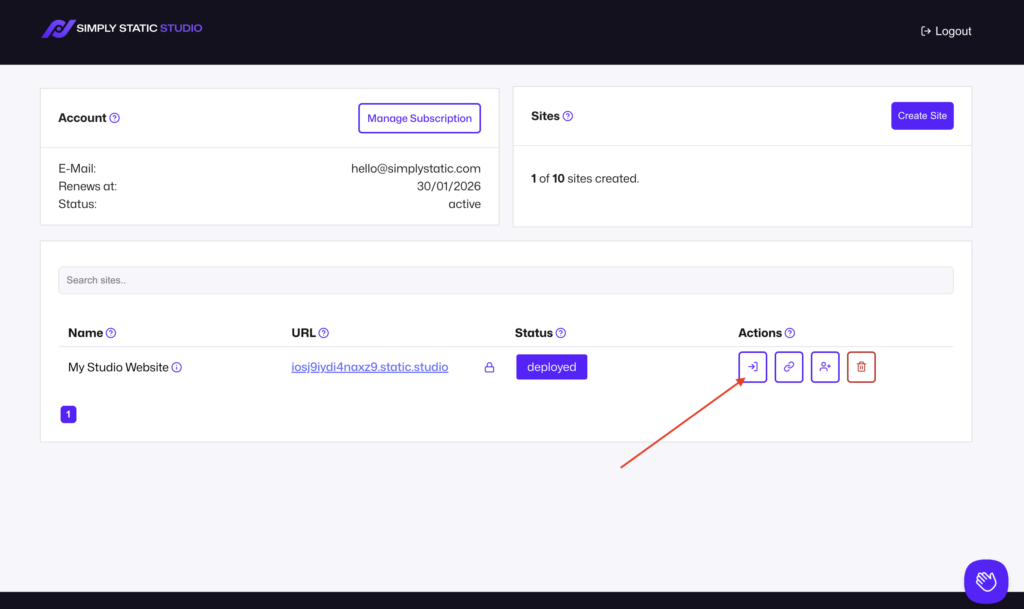
Can your hosting setup make WordPress less secure?
A web host can make your WordPress site more or less secure depending on the features they offer you.
Since they control the environment where your site lives, there are a few critical components you can look at to determine if they’re helping or hurting your defense:
- Isolation.
If you’re on a shared hosting account, you want to ensure the host separates websites to prevent one compromised site from affecting others. Ask whether your site runs in its own container or account-level sandbox. If your host cannot clearly explain how sites are isolated, that is a warning sign. - Built-in security features.
Look for firewalls, bot protection, DDoS protection, malware scanning, etc. Find out which protections are enabled by default and which require manual setup. Security features that exist but are turned off do not protect you. - Backups.
Confirm if backups are automatic, where they are stored (off-site is best), and whether one-click restores are available. Test restoring a backup before you need it. A backup that cannot be restored quickly is not useful during an incident. - Check your PHPA widely-used programming language especially suited for web development. version (and software lifecycle).
The host should support the latest PHP version and actively retire unsupported versions. - Read support and documentation.
Read the host’s support docs to see how clearly they explain security settings and common issues. Good hosts document how to secure WordPress, not just how to install it. If security guidance is vague or missing, you may be expected to fill in the gaps yourself.
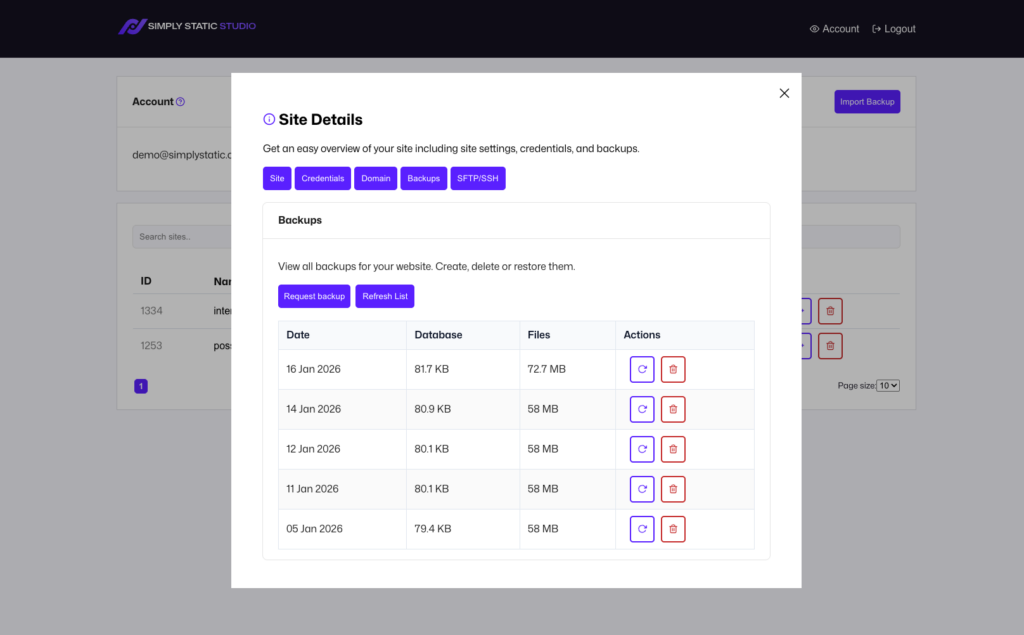
Checking these items can help you tell how much protection you’re getting from your hosting provider or if it’s leaving gaps that need attention.
How does hosting choice affect WordPress security long-term?
Many WordPress hosts are designed to serve WordPress files and media assets as a dynamic website. That means when a visitor opens your site, they’re interacting with a live WordPress system in real time, whether they’re browsing posts, searching archives, or submitting a form.
From a security standpoint, this is a key issue because a live WordPress site does more than show content. It also exposes the very system that generates that content ‘on the fly’ to the public.
What is exposed (and why)
In simple terms, a live setup exposes:
- WordPress core files and executable PHP scripts.
- Login pages and authentication endpoints.
- APIs and services such as XML-RPC and REST endpoints.
- The database is indirectly accessed through forms, plugins, and application requests.
- Plugins and themes that execute PHP code on every request.
This exposure exists because a typical WordPress host:
- Keeps WordPress running continuously on a publicly accessible server.
- Accepts direct requests to WordPress entry points and backend scripts.
- Generates pages dynamicallyActions or processes that occur in real-time, often without requiring a full page reload. For example, a search box that… every time someone visits the site.
As long as your WordPress site is exposed this way, keeping it secure becomes an ongoing task rather than something you do once and forget.
Even the best security plugins, firewalls, and monitoring tools can only reduce the risk, but they cannot completely remove these common attack surfaces. They can only manage them to keep your site safe.
Why static hosting improves security
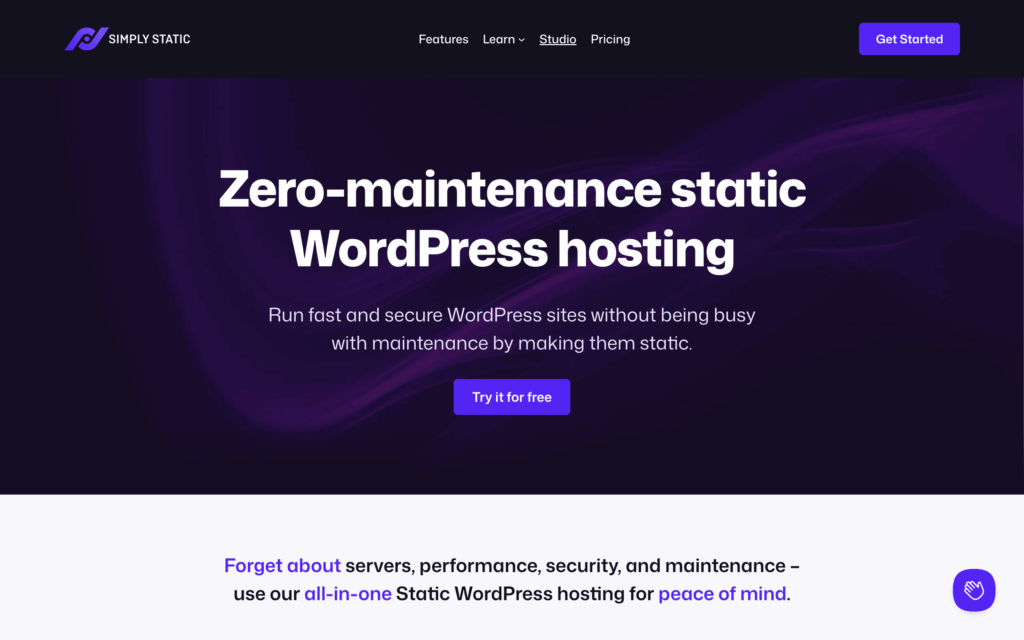
To reduce this kind of exposure that traditional WordPress hosts leave behind, static hosting offers a more secure approach.
Instead of serving a live WordPress site to the public, a static host separates your live site from WordPress by converting your pages into static files (HTMLHyperText Markup Language. It’s the standard language for creating web pages., CSSCascading Style Sheet. It’s a language used for describing the look and formatting of a document written in HTML., and sometimes JavaScriptA programming language used in web development to create interactive elements on a webpage.). This means that the parts of WordPress that were normally exposed, like your database or login pages, are no longer publicly accessible to attackers.
By removing these attack surfaces, security becomes much simpler and far less ongoing work.
How can Simply Static Studio reduce WordPress security risks?
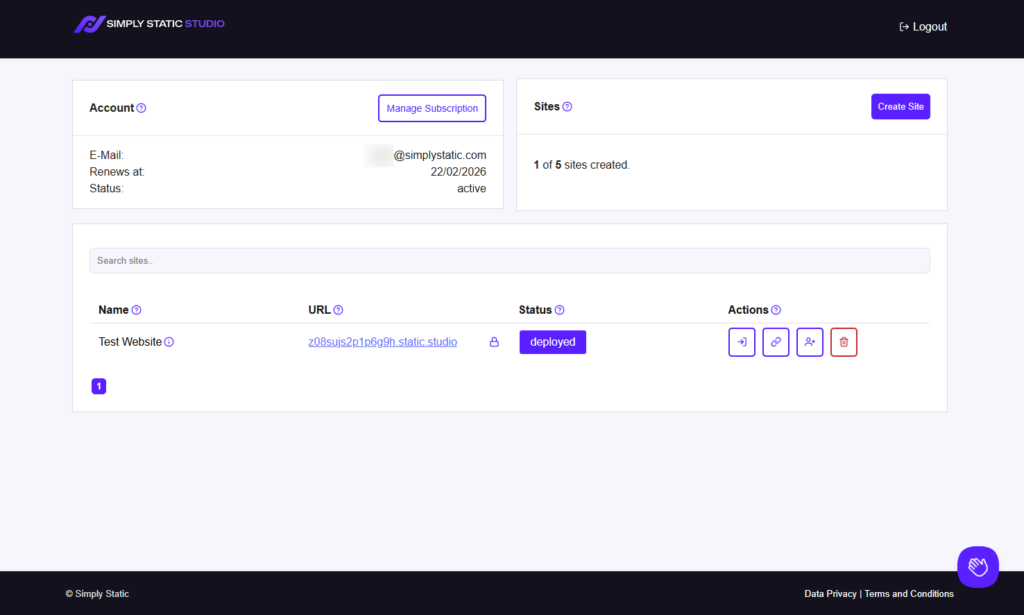
If you find yourself constantly monitoring, patching, and hardening WordPress just to keep your site safe, but you’re still having problems with WordPress security, Simply Static Studio takes a different approach.
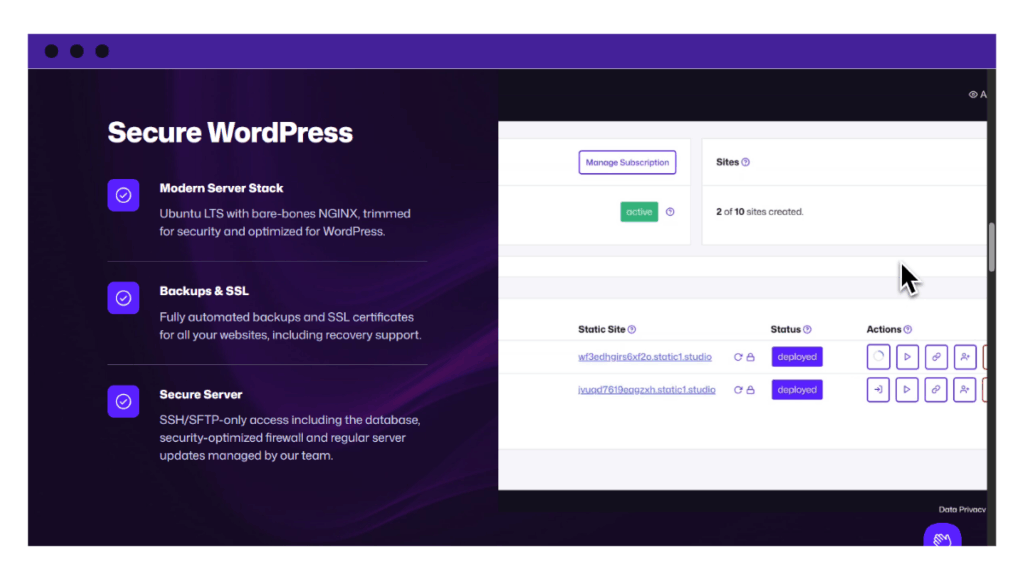
Instead of managing what is exposed, Simply Static Studio hides WordPress completely from public access. You continue using WordPress normally behind the scenes, but the platform publishes only a secure static version of your site on the web.
With Simply Static Studio:
- Visitors interact only with static files, so common WordPress attack vectors cannot be exploited.
- The database is never publicly reachable, which reduces the risk of data-related attacks.
- WordPress is used purely as a content management system, not as a public-facing application.
- PHP files and dynamic plugins are not accessible over the web, removing many common exploit paths.
- There are far fewer entry points to monitor, patch, or defend over time.
The result is a much smaller security footprint and a setup that is easier to maintain long-term.
What makes Simply Static Studio stand out
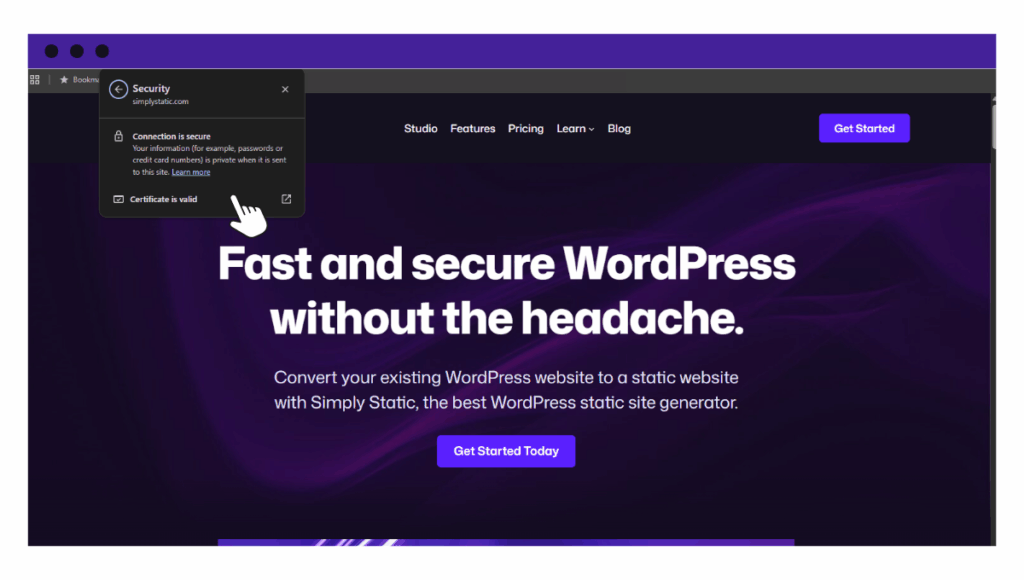
Simply Static Studio also stands out for how it keeps this setup practical and manageable.
- Zero maintenance and peace of mind.
Once your site is published as static files, there is no need to rely on security plugins, firewall rules, or constant monitoring to protect a live application. Most common WordPress threats are removed by design. - Locked-down WordPress.
The platform runs WordPress in a protected environment that visitors and attackers can’t reach. This sharply limits what anyone can access. - Secure control panel.
Simply Static Studio provides a remote dashboard where you manage your static sites, invite team members, and deploy updates. You access WordPress through a magic login link instead of a traditional public login page. - Static site hosting via a powerful CDNStands for Content Delivery Network. It’s a system of distributed servers that deliver web content quickly to users base….
The platform delivers your site as static files through a CDN with over 120 data centers, which reduces attack vectors and improves reliability. - Fast performance by default.
Static files load faster because there are no repeated database calls to the server or PHP processing on each visit.
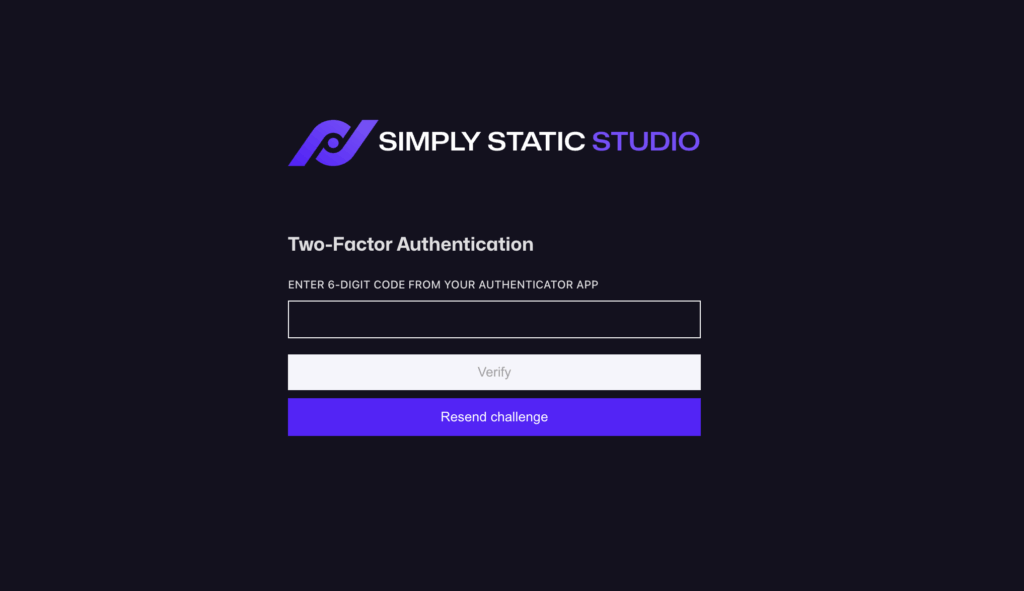
Together, these features make Simply Static Studio a good fit for site owners who want strong security, less ongoing work, and long-term peace of mind.
Try static WordPress hosting free for 7 days
No credit card. No maintenance. No headaches.
Are you protected against malware and common attacks?
Once you get a sense of the protection you get from a host, it also helps to check what basic protection exists at the site level.
The easiest way to do this is to verify if your site has its own internal security measures to handle common WordPress-specific threats.
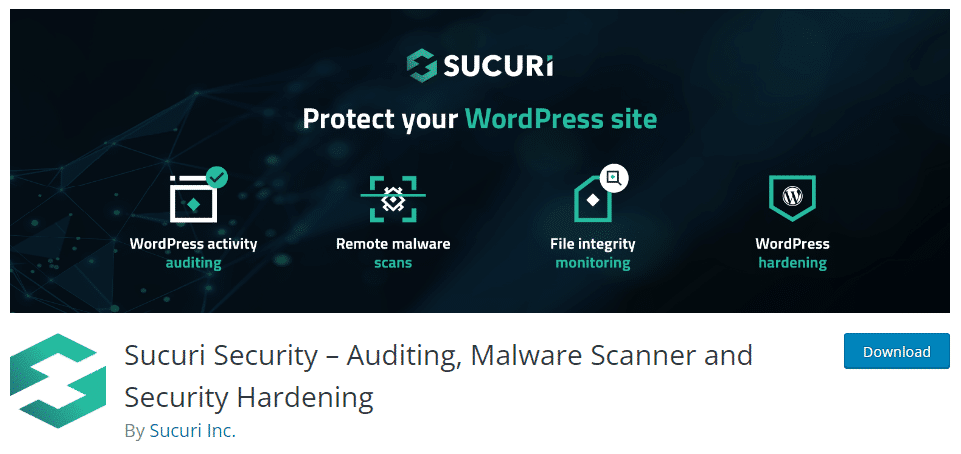
You can check your site-level protection by looking at the following indicators:
- Do you have a security plugin installed?
Plugins like Wordfence or Sucuri are commonly used to scan WordPress files and databases automatically. While a host may scan the server, these tools focus on WordPress-specific areas such as theme files, plugins, and the uploads folder, where malicious scripts often hide. - Is there a web application firewall (WAF) in place?
Check whether a WAF is active through your host or a security plugin. A WAF filters traffic and blocks common attacks and bots before they reach WordPress. - Do you have active malware monitoring?
Confirm that malware scanning runs automatically and produces visible results. Scans should look for malicious code, backdoors, and unexpected file changes. If you cannot see scan history or alerts, monitoring may not be active.
When these tools are in place, your site is better positioned to detect issues early and respond before they turn into bigger problems.
Do you have the basics covered for files, access, and permissions?
Next, it also helps to check your site’s file integrity. File access and permissions control who can read or change files on your WordPress site. When these settings are too open, files can be modified without you noticing.
To avoid running into such problems, here are a few things to be aware of:
- File permissions.
Most WordPress files should be set to 644, and folders should be 755.
Sensitive files like wp-config.php should be more restricted, ideally 600, so only the site owner can read or change them. - FTPFile Transfer Protocol. A method for transferring files between a local system and a server over the internet. vs. SFTPSecure File Transfer Protocol. A secure method of transferring files between a local system and a remote server. access.
When you or a developer moves files to your site, you usually use a ‘File Transfer’ tool. Standard FTP is old and sends your password in plain text, which makes it easy for hackers to steal. SFTP (the “S” stands for Secure) encrypts the connection, keeping your login details safe. It’s a simple switch that makes transferring files much safer. - Key WordPress files.
The wp-config.php and .htaccess files are among the most sensitive files in a WordPress site. The wp-config.php file contains database credentials, security keys, and core configurationThe setup process where you specify the settings and options for how a software or system will operate. values. The .htaccess file (on Apache servers) controls how the server handles requests, redirects, and access rules. If these files are frequently edited or writable by many users, that is a security risk. - File editing in WordPress.
If you do not actively edit theme or plugin files from the WordPress dashboard, it is safer for this feature to be disabled. This reduces the chance of accidental or hidden changes.
By checking your files and access, you will ensure that only authorized people can get into your site and that important files cannot be changed by anyone else.
Quick WordPress security checklist
Here are the key takeaways from our quick WordPress security checklist.
WordPress-level checks
To make sure your WordPress site is secure:
- Update your content management system (CMS), plugins, WordPress themes, and SSL certificates regularly. Outdated tools are the top entry point for site hacks.
- Where possible, enable automatic updates to keep your site patched without manual effort.
- Remove what you don’t use. Inactive plugins and themes are not only potential security risks but also can drag down site performance and confuse both users and search engines.
- Secure your login area. Check if your login page uses custom login URLs. Protect it with strong login credentials that no one can easily guess. Also, enable two-factor authentication for an added security layer. Tools like WP 2FA can help.
- Most importantly, limit the number of login attempts to prevent brute force attacks.
- On top of that, set the correct file permissions to control who can read or change files on your WordPress site.
Hosting-related checks
Hosting also plays a big role in long-term security because it provides the environment where your site lives.
Because of this, you want to make sure that your host:
- Runs the latest PHP version to keep your site compatible and secure.
- Provides all the basic built-in security features, including firewalls, DDoS protection, malware scanning, automatic backups, and free SSL certificates.
- Has the knowledge base and support materials that can guide you if issues arise.
By checking these components (and more), you can be sure that your hosting setup improves your WordPress security instead of hurting your defense.
When to consider changing your approach
Adding more security plugins or upgrading your hosting plan can only reduce the risk so far. At the end of the day, a traditional WordPress site still has the same weak points: a database, a login page, and plugins that hackers often target.
So, consider a different approach if:
- You spend a lot of time monitoring, patching, and hardening WordPress.
- You rely on multiple security plugins just to stay safe.
- Your site does not require full dynamic functionality (like ecommerce or membership) for visitors.
- You want less ongoing maintenance and more peace of mind.
In such scenarios, opting for a static WordPress host like Simply Static Studio can help maximize your website security. This static host separates your live site from WordPress itself and, in the process, removes those attack surfaces altogether to keep you safe.
FAQs about WordPress security
How secure is WordPress by default?
On its own, WordPress is a secure platform. It is frequently updated to fix bugs and patch security issues. But once you create a website with it, you add plugins, themes, forms, and other features that can introduce vulnerabilities. This is why regular updates, careful plugin use, and proper hosting are so important to avoid a security breach.
Do WordPress security plugins fully protect a site?
The short answer is no. While a security plugin is an essential part of your defense, it can only reduce a security risk, for example, by scanning files, blocking attacks, and limiting login attempts. They don’t make WordPress websites suddenly immune to attacks despite the number of plugins you’ve installed. They’re just part of the equation.
How much does hosting affect WordPress security?
A secure host is your first line of defense. While a plugin works inside your site, a secure host protects the entire environment around it. Generally, a good host strengthens your site by providing updated servers, DDoS protection, firewalls (WAF), SSL, malware monitoring, and an isolated environment (for shared hosting).
Is static WordPress hosting more secure?
Static WordPress hosting is the most secure type of hosting because it removes the common attack surfaces hackers often target by serving static file copies of your site instead of a live WordPress site. Login pages, PHP files, and databases remain hidden, making your site much harder to exploit.
How to make your WordPress site safer going forward
These WordPress security checks can go a long way in keeping your site safe. Updating WordPress, reviewing plugins and themes, securing your login area, and checking your hosting setup are simple steps that make a big difference.
But as long as the traditional WordPress site is live on the internet, there are key parts of your website that are exposed to the public. These include the login page, PHP files, and database access, which hackers often target.
You can’t fully fix this kind of exposure by adding more plugins or upgrading your hosting plan. To truly reduce the underlying attack surface, you need to rethink how you host your site.
That’s where Simply Static Studio comes in. It is a static WordPress host that lowers exposure by keeping WordPress private and serving only a static version of your site to visitors.
This creates a much lower-risk hosting setup that’s affordable, highly performant, and requires zero-maintenance.
Try static WordPress hosting free for 7 days
No credit card. No maintenance. No headaches.