We’ve added two improvements to Static Studio: a new Headers tab for managing security and custom response headers, an updated Markdown workflow, andllms.txt workflow powered by the CDN.
You can now adjust how browsers handle your public site and give compatible AI tools a simpler way to read its content, while continuing to edit and publish in WordPress.
Here’s what changed and where to find it.
Manage response headers in Studio
Security headers tell a visitor’s browser how to handle parts of your website. They can instruct the browser to use HTTPS on future visits, control whether another website can embed your pages, and limit the information sent when someone follows an external link.
Those settings belong to the system serving your public site. A WordPress plugin that changes headers inside WordPress doesn’t necessarily change the headers delivered with your static pages.
You can now manage them under Site Details → Headers:
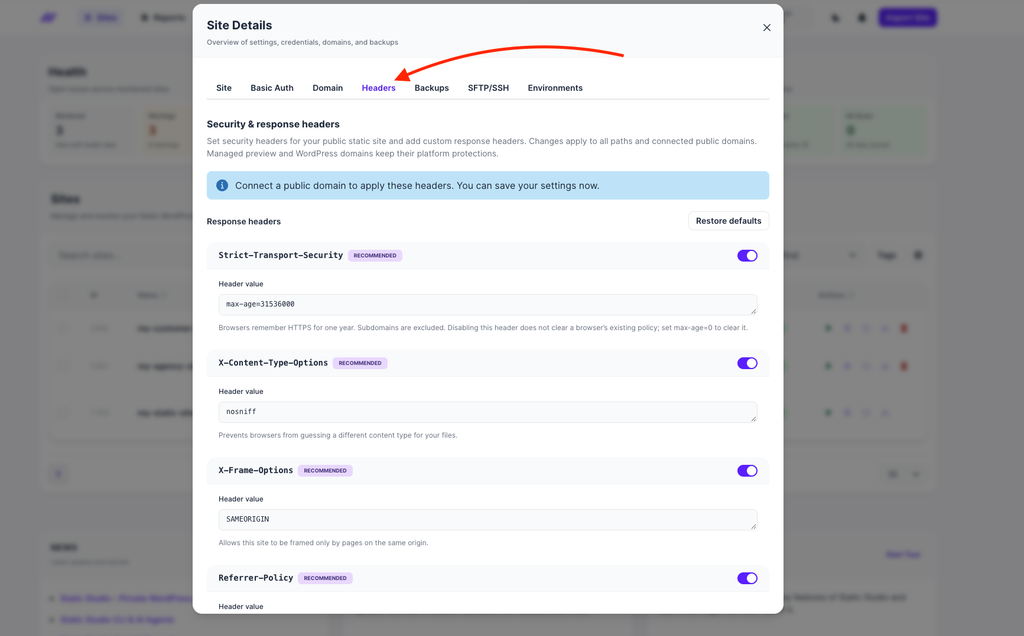
The new tab shows your site’s response header configuration, with editable values and an on/off switch for each header. Site owners and administrators can make changes; other site members can review the settings.
Five recommended defaults
Studio includes five recommended security headers as a starting point:
| Header | Default | What it does |
|---|---|---|
Strict-Transport-Security | max-age=31536000 | Tells browsers to remember HTTPS for one year. |
X-Content-Type-Options | nosniff | Prevents browsers from guessing a different content type for a file. |
X-Frame-Options | SAMEORIGIN | Limits embedding your pages in frames to the same origin. |
Referrer-Policy | strict-origin-when-cross-origin | Limits the referring URL information shared with other origins. |
Content-Security-Policy | A configurable baseline | Restricts base URLs, object embeds, and framing, and upgrades insecure resource URLs to HTTPS. |
These are established browser controls covered in the OWASP HTTP Headers Cheat Sheet. Studio’s default Content Security Policy leaves script, image, font, and connection sources unrestricted, giving you room to add rules for your site’s integrations.
You can also select Add custom header to define additional response headers, such as a Permissions-Policy for browser features your site doesn’t use. Headers managed by Studio for delivery, caching, cookies, and redirects remain reserved.
Save changes without exporting your site
To update a policy:
- Open Site Details → Headers.
- Edit a value, toggle a header, or add a custom header.
- Select Save headers.
Studio publishes the configuration through the CDN across your site’s connected public production domains and paths. You can save a header change without running a content export. Allow a few minutes for it to propagate.
Restore defaults replaces the list with the five recommended headers, removing custom entries from the editor. You still select Save headers to publish that change.
The tab controls your public production site. Private previews and the WordPress editing environment keep their own policies.
If your site needs to appear inside a frame on another domain, review both X-Frame-Optionsand the CSP’s frame-ancestors setting. The default CSP also upgrades HTTP resources to HTTPS, so those resources need to support HTTPS.
HSTS has one additional detail: browsers remember it. To revoke an existing policy, serve max-age=0over HTTPS before disabling the header. MDN explains how HSTS policies expire and are removed.
Markdown from your published pages
An AI tool retrieving a web page receives the HTML for its content, navigation, layout, and other page elements. A Markdown version gives compatible tools a simpler text representation of the content.
Our updated solution uses Bunny Optimizer’s Agent Readability to convert eligible published HTML pages into Markdown at the CDN.
An agent can request the page’s existing URL with the HTTP header Accept: text/markdown to retrieve that representation. Ordinary browser visits continue to receive the designed HTML page.
For Studio sites, this moves Markdown conversion out of the Simply Static export process. You continue editing in WordPress and publishing your static site as usual. The CDN handles the Markdown representation of that published content.
An automatically generated llms.txt guide
Markdown provides the page content. llms.txt gives compatible tools a compact guide to relevant pages on your site.
Studio now asks Bunny Optimizer to generate that guide using your public sitemap when one is available. If it can’t reach a suitable sitemap, it uses automatic discovery instead. Once generation succeeds, serving is enabled at /llms.txt on your public domain.
A successful site export requests a fresh version, so the guide can reflect newly published content. Generation happens in the background, and an existing guide continues serving while its replacement is prepared.
The llms.txt proposal describes it as a way to provide context and links for agents. It remains an optional convention, with support depending on the tool accessing your site. Your sitemap and robots.txt continue to serve their own purposes alongside it.
Check what AI tools can retrieve
You can review the result under Site Health → SEO & AI → AI Readiness:
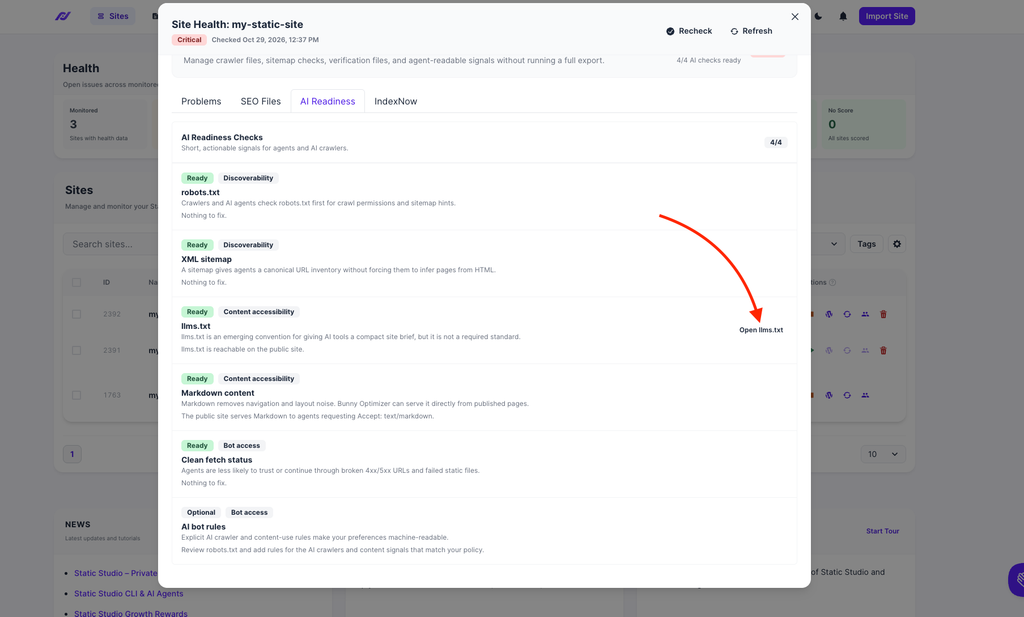
Studio checks /llms.txt on the public site and requests the homepage as Markdown. It also tries index.md as a fallback. These checks inspect the response content and its type, so an HTML page returned at a text URL doesn’t count as a successful result.
You can confirm what tools can actually retrieve from the live site. When llms.txt is verified, Open llms.txt lets you inspect it. A missing llms.txt does not reduce your AI Readiness score.
Availability
The new Headers tab is available in Site Details.
Existing sites with custom policies or compatibility requirements may have a different configuration from the recommended defaults; review your site’s values before changing them.
Automatic Markdown and llms.txt setup applies to paid production sites with a custom domain. Trials, managed previews, and staging environments are excluded. Sites mounted under a path such as /blog retain the parent domain’s separately managed policy.
Studio handles setup and migration for eligible sites automatically. Initial generation can take time, and Site Health reflects what is reachable when the checks run.
To get started, open Static Studio, review your site’s Headers, and check AI Readiness for its public content.
Table of Contents