If you’re looking to learn how to secure a WordPress site properly in 2026, this guide is here to help.
In this guide, we’ll walk you through what you need to do from the ground up to keep WordPress secure. We’ll begin with hosting, then move on to core settings, user accounts, plugins, backups, and more.
Along the way, we’ll also provide clear, simple guidance to avoid common security mistakes and fix issues that trip up most site owners.
The most important place to start is by considering your hosting setup.
Step 1: Start with hosting, because everything else depends on it
The first step in learning how to secure a WordPress site is hosting. Every other security decision you make later, like updating WordPress or installing security plugins, buildsIn the context of Simply Static, builds are the process of creating a static version of your WordPress website. on it.
Generally, the type of hosting you choose determines:
- What security features you get in a plan.
- How updates, site isolation, and recovery are handled.
- How much ongoing work and responsibility falls on you.
Using a poor host will make you rely on extra tools. You’ll end up paying for (and managing) a security pluginA piece of software that adds specific features to WordPress. to fix problems the web host could have prevented.
Secure hosting options to consider
Among the best hosting options to consider if you want to run WordPress securely are:
Managed WordPress hosting
- This host handles updates, firewalls, SSLSecure Sockets Layer. A technology that encrypts the data transferred between a user and a website. certificates, DDoS protection, and other security features automatically.
- Good for dynamic sites that rely on plugins, WordPress themes, or ecommerce features.
- Popular hosting providers include WP Engine, Kinsta, and Bluehost.
VPS or dedicated servers
- This option offers the strongest isolation and more control over your setup.
- In experienced hands, it can be very secure. However, you’re the one responsible for hardening the web server, monitoring for intrusions, and managing backups.
This option normally trades convenience for control. Unless you have technical expertise, you may find yourself manually fixing security gaps that a managed host would handle automatically.
Static WordPress hosting
- Your WordPress site is converted into static HTMLHyperText Markup Language. It’s the standard language for creating web pages., CSSCascading Style Sheet. It’s a language used for describing the look and formatting of a document written in HTML., and JS files, which are then served without a live database or login system.
- The WordPress backend, login page, PHPA widely-used programming language especially suited for web development., or database is completely locked down.
- Best for content-driven sites that don’t need server-side interactivity.
- It delivers the maximum speed, minimal maintenance, and the fewest security vulnerabilities.
So let’s say you’re curious about static hosting, here’s the best one to consider.
Try static WordPress hosting free for 7 days
No credit card. No maintenance. No headaches.
Why Simply Static Studio is the strongest choice
If you want the most effective way to host your WordPress website with increased security, performance, and reduced maintenance, Simply Static Studio is the strongest option available.
Simply Static Studio is a hosting platform that keeps your WordPress site private and publishes only a secure, static version of your site to the web. Neither your site visitors nor anyone else can interact with WordPress itself.
Many static solutions are just external tools that leave you to manage separate hosting. Simply Static Studio combines static publishing, hosting, and security into a single, controlled setup.
It includes:
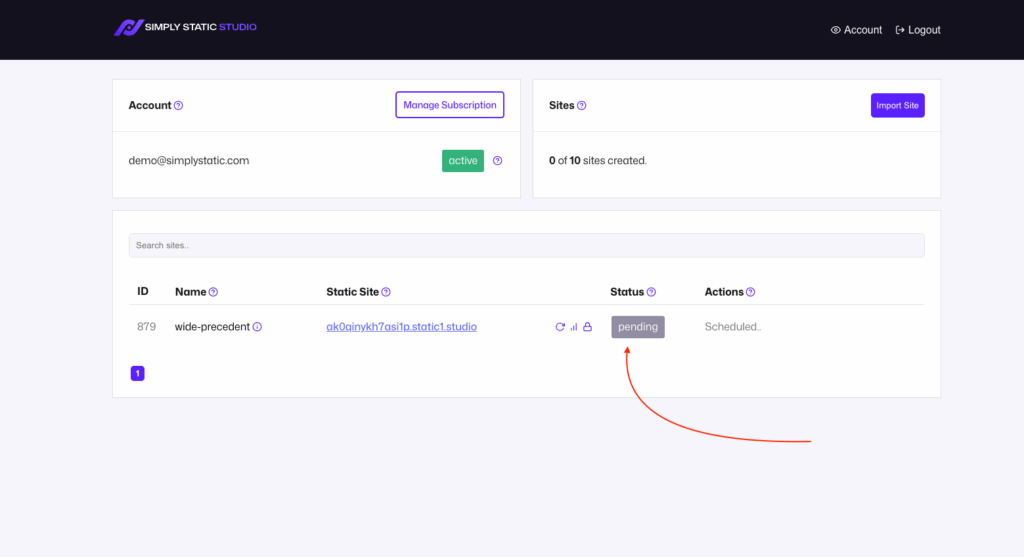
A private WordPress installation
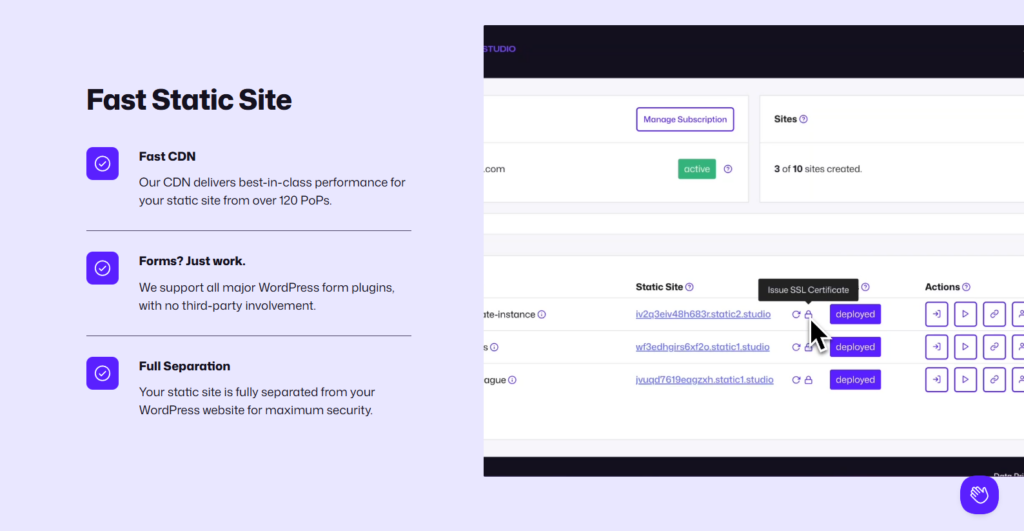
Simply Static Studio installs and completely locks down WordPress in a secure, static environment. Only site owners and approved team members can access the dashboard using a secure, one-click magic login.
All default WordPress paths, including /wp-admin/, /wp-content/, and /wp-includes/, are hidden from the public web and automated bots.
No public database or PHP processing
When your site is published as static files, the database is entirely removed from public access. Without a live database or PHP processing, 99% of common WordPress attacks, such as SQL injection and cross-site Scripting (XSS), are no longer possible.
Static hosting via a high-performance CDN
Your static files are delivered over a global content delivery network (CDNStands for Content Delivery Network. It’s a system of distributed servers that deliver web content quickly to users base…) once you connect to a custom domain.
This setup is also automatic:
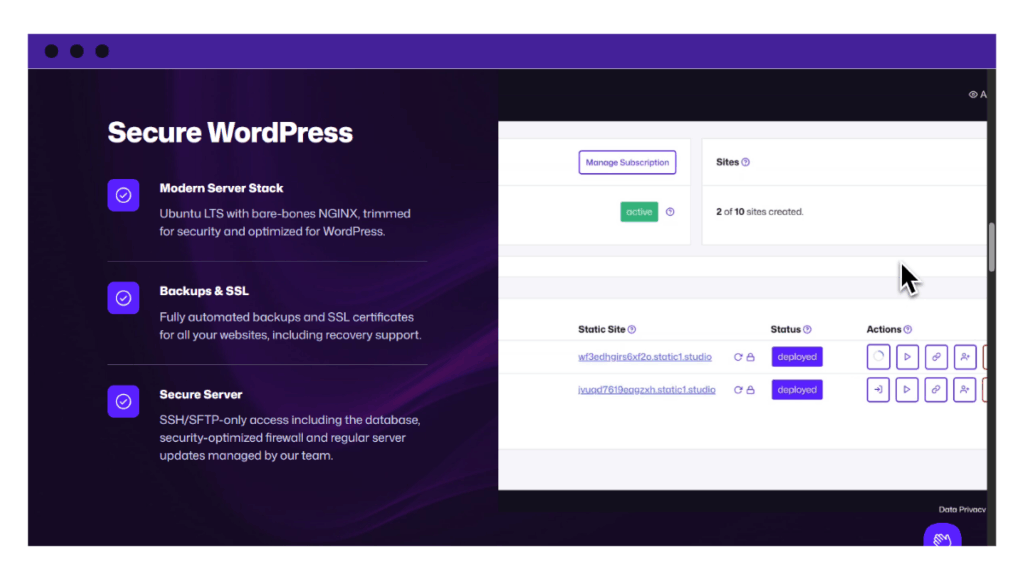
- SSL certificates are issued and renewed.
- Backups are fully managed as part of the platform.
- You also get SFTPSecure File Transfer Protocol. A secure method of transferring files between a local system and a remote server. & SSHSecure Shell. A method for securely connecting to a remote computer. access if you need full server access.
Low maintenance and peace of mind
Once your site is published, there’s nothing left to secure on the public web. So, if your goal is to run a content-based website that’s fast, stable, and highly secure by design, go with Simply Static Studio.
WordPress remains a private content management system, not a live application that needs constant protection. This allows you to focus on the business side.
Let’s say you don’t opt for static WordPress hosting, though. Here are some of the other steps you’ll need to take to learn how to secure a WordPress site.
Step 2: Make sure WordPress itself isn’t the weak link
Next, we need to ensure that no component within WordPress is a source of vulnerability.
What to check
To ensure that there are no weak spots within WordPress, review your:
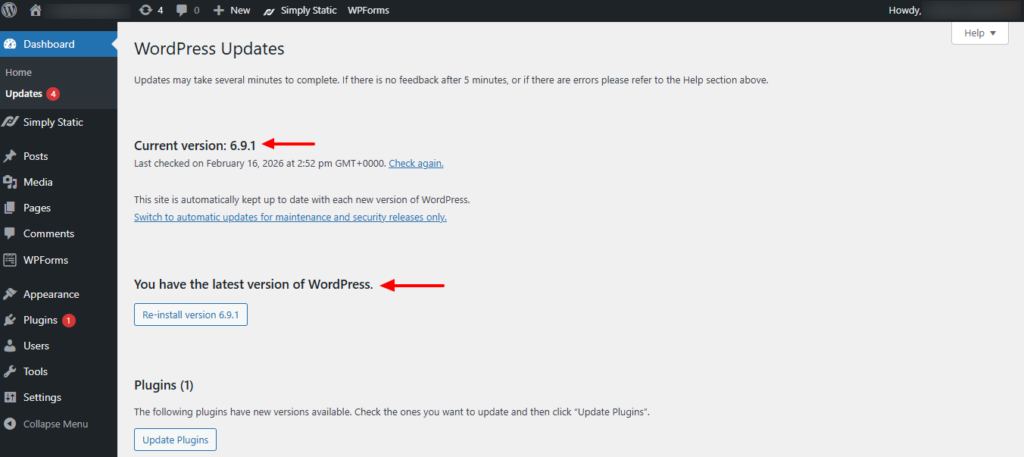
- WordPress version. Log in to your WordPress dashboard and go to Updates to ensure you’re running the latest version of WordPress core. These core updates often include security patches that are critical to your site’s survival.
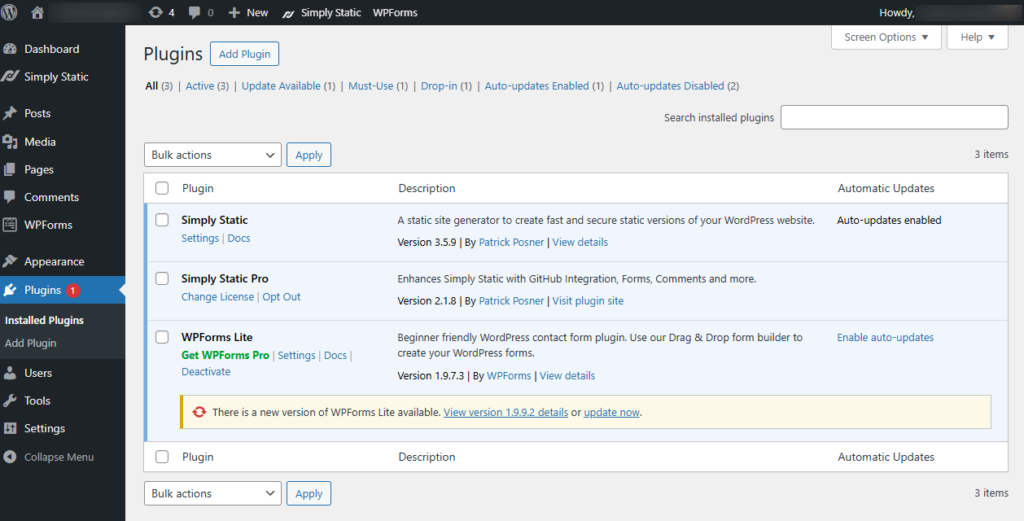
- Automatic updates. While on the WordPress Updates screen, update any plugins or themes that require attention. Where possible, enable automatic updates to reduce the risk of running outdated software.
- Installed plugins and themes. Review all of them and remove any extensions you no longer use, trust, or actively maintain.
Particularly, pay close attention to:
- Plugins or themes you no longer use.
- Tools that haven’t been updated in a long time.
- Features you added once and forgot about.
These items pose a huge security risk to your website. In fact, 97% of WordPress vulnerabilities come from plugins and themes, not WordPress core itself.
Step 3: Review and secure your user accounts
Anyone who has access to your WordPress website also needs to be reviewed because they’re potential targets, too. The goal is simply to ensure all WordPress user accounts have only the access they need and are properly protected.
You can find these accounts listed in Users > All Users from your dashboard.
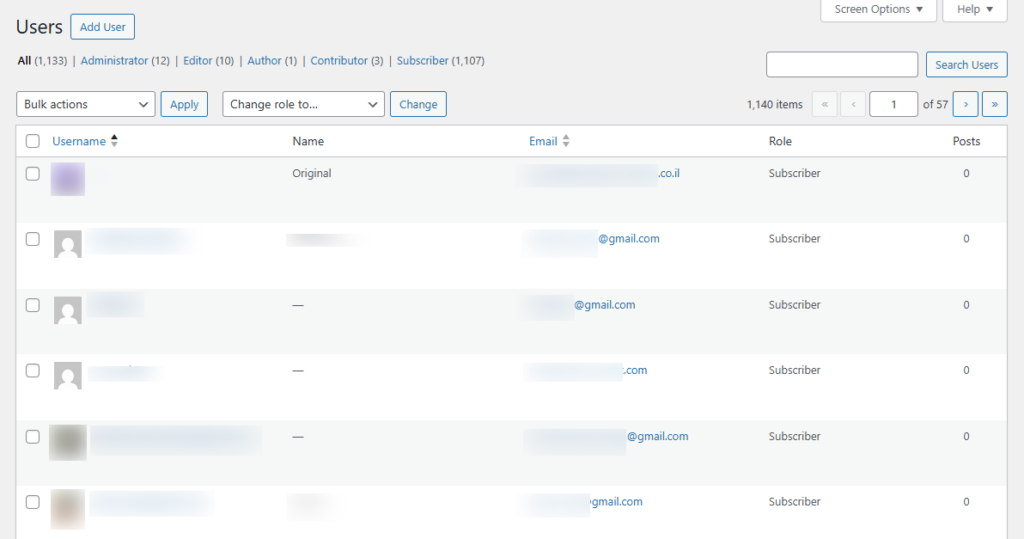
When reviewing each account, focus on the:
- Usernames. Avoid predictable usernames such as admin, your site name, or email prefixes.
- User roles and permissions. Give users only the level of access they need. More importantly, limit Administrator roles to yourself and a few trusted users.
- Account status. Delete accounts for former employees, old contributors, or one-time contributors.
What more can you do?
To tighten the security of these user accounts further:
- Encourage all WordPress users to use strong passwords.
- Enable two-factor authentication (2FA). A plugin like WP 2FA can help add this second layer of protection and block access even if a password is compromised.
- Limit the number of login attempts to around 3 or 5 trials.
- Remove application passwords. If an app or service no longer needs access, delete its password so it can’t connect to your site anymore.
Having user accounts with minimal permissions and strong authentication removes one of the easiest ways WordPress gets compromised.
Step 4: Reduce what your WordPress site exposes to the internet
By default, a traditional WordPress site exposes several parts of the system on the web.
These commonly include:
- Default WordPress paths such as /wp-admin/ and /wp-login.php.
- Plugin and theme files.
- Core files like wp-config.php and other PHP files.
- Your database structure.
- Built-in WordPress features that remain active unless you disable or restrict them.
These are some of the weak points attackers look for first, using automated scanners and bots. If they remain exposed, your site becomes an easy target.
How to reduce their exposure
To limit what attackers can find and attack:
- Change the default login URL. Use a unique login path instead of the default WordPress login page.
- Disable file editing from the dashboard by adding define(‘DISALLOW_FILE_EDIT’, true); to your wp-config.php file. This prevents hackers from editing your theme files directly to hide a backdoor (via a dashboard).
- Disable XML-RPCXML Remote Procedure Call. A protocol that uses XML to encode the calls and HTTP as a transport mechanism. if you don’t need it. XML-RPC is commonly abused by bots. You can disable it via .htaccess or via a plugin.
- Change the default database prefix. Replacing the default wp_ prefix makes automated database attacks harder to execute.
- Block directoryA folder in a computer’s file system used for storing files and other directories. listing to prevent people from browsing your folder structures, such as /uploads/ and other directories.
This might be too technical for most website owners. Luckily, many managed WordPress hosts already handle some of these protections at the server level. You can also supplement them with a dedicated security plugin to hide these file paths and further protect your database structure.
Step 5: Use security plugins deliberately
Security plugins can help protect your WordPress website, but only when used intentionally.
For example, installing multiple security plugins or enabling every feature rarely makes a site safer. In many cases, it does the opposite.
Security plugins work best when they are supported by a solid hosting setup. They should not be used to compensate for poor hosting, outdated software, or excessive exposure.
What security plugins are good at
When used correctly, a security plugin can:
- Add a web application firewall (WAF) to block common attacks.
- Monitor login attempts and suspicious behavior.
- Scan for known malware and file changes.
- Send alerts when something goes wrong.
These features are especially useful for sites running WordPress as a live installation.
What security plugins cannot fix
Security plugins can’t:
- Secure a weak hosting environment.
- Protect an outdated or poorly maintained site.
- Remove vulnerabilities introduced by unused plugins and themes.
- Eliminate risks created by exposing too much of WordPress to the internet.
They can also introduce problems when misused. For example, if two security plugins try to block IPs or modify .htaccess simultaneously, this can cause a conflict. This overlap in functionality can slow down your site, hurt SEO, or even lock you out of your own dashboard.
How to approach your security setup
To use security plugins deliberately:
- Evaluate your hosting first. If you’re on managed WordPress hosting, check which protections are already in place. This can help you avoid overlapping features in the plugin.
- Then, choose one clear solution. Pick one reputable security plugin and stick with it. Using two doesn’t mean you’re twice as safe. Well-known options include Wordfence, Sucuri, and All-in-One Security.
- Enable only what you need. Enable specific features that solve real problems for your site, and avoid blanket settings.
- Review, don’t constantly tweak. Check your settings and logs periodically, not weekly. Too much tuning often adds noise without improving your website’s security.
Tip: Remember, if you’re tired of managing this complex ‘arms race’ of plugins and patches, opt for static WordPress hosting. By separating your live site from WordPress itself, you eliminate most attack surface and sidestep this entire security headache.
Step 6: Make sure backups and recovery actually work
What would happen to your WordPress site if all your data were wiped out?
Without backups, you’d be back to square one. Backups don’t necessarily stop attacks, but they allow you to undo mistakes, recover from a hack, and get your site back online quickly.
Every site owner needs a recovery plan for situations like these:
- A plugin or theme update breaks the site.
- Files or content are accidentally deleted.
- A security breach corrupts your data.
- A hosting failure or migration goes wrong.
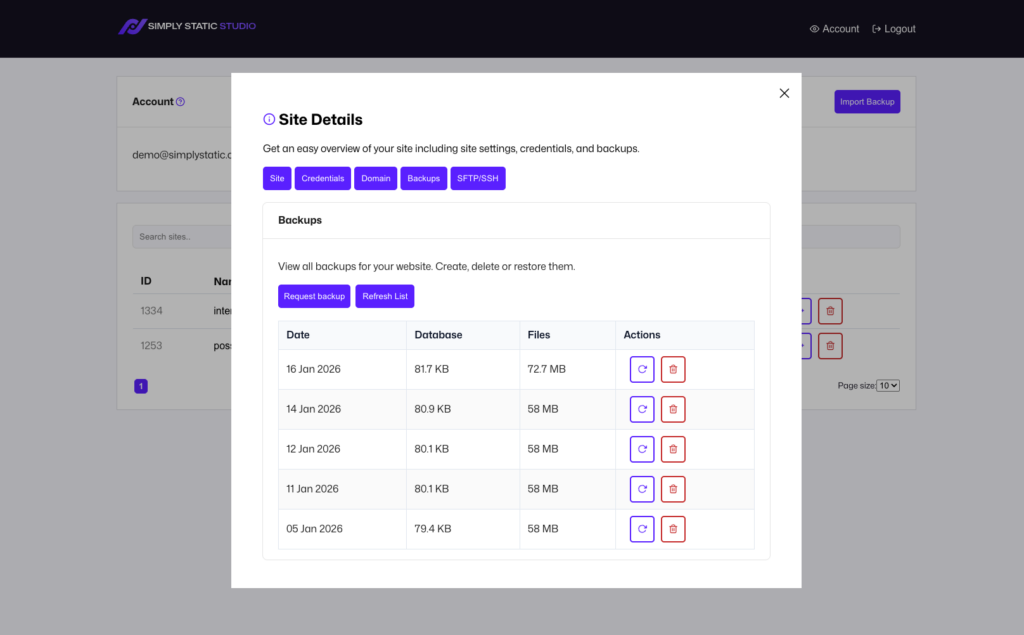
What to check (and how to handle it)
To know if your backups and recovery actually work, check for the following:
- Frequency of backups. Does the host or plugin offer hourly, twice daily, daily, biweekly, weekly, or monthly backups? Regular backups ensure you always have the latest version of your site’s content.
- Storage location. A good host or backup plugin should automatically send your backup files to accessible storage locations, such as Dropbox or Google Drive.
- Restore access. Make sure you can access and download backup content without needing support.
- Scope. A complete WordPress backup includes both site files and the database. Missing either one can make recovery incomplete or impossible.
- Test your restore process. At least once in a while, restore your site in a safe environment, such as a staging site or a local copy. This confirms that your backups actually work and helps you understand how long recovery takes.
A step-by-step WordPress security checklist
Want a reminder of all the steps we just went through? Here’s a handy checklist.
| Security focus | What to do (checks) |
| Hosting & architecture | Goal: to make sure WordPress itself isn’t a weak link. Make sure WordPress version is up to date. Update all active extensions listed in the WordPress updates screen. Enable automatic updates. Remove plugins and themes you no longer use. Replace tools that aren’t actively maintained. |
| WordPress core, theme, and plugins | Goal: To reduce what WordPress exposes to the internet. Limit access to the wp-admin where possible. Disable features you don’t use (e.g., XML-RPC). Lock down sensitive files and default WordPress paths. Block directory listing. |
| User accounts & permissions | Confirm backups run regularly. Find where the host or backup plugin stores your backup files. (Should be in a remote location). Check whether the backup content includes all files and the database. Test a restore at least once. |
| Login & exposure | Goal: To reduce what WordPress exposes to the internet. Limit access to the wp-admin where possible. Disable features you don’t use (e.g., XML-RPC). Lock down sensitive files and default WordPress paths. Block directory listing. |
| Security plugins | Confirm backups run regularly. Find where the host or backup plugin stores your backup files. (Should be in a remote location). Check whether the backup content includes all files and the database. Test a restore at least once. |
| Backups & recovery | Confirm backups run regularly. Find where the host or backup plugin stores your backup files. (Should be in a remote location). Check whether the backup content includes all files and the database. Test a restore at least once. |
When static WordPress is the safest option
Static WordPress is safest when you want to reduce risk by design, not by constantly patching and monitoring a live system. By removing WordPress from public access, most common attacks simply become irrelevant.
Static WordPress makes sense if:
- You’re constantly battling brute-force attacks, malware, and new WordPress vulnerabilities.
- You’re tired of never-ending updates, site maintenance, and constant monitoring just to keep your WordPress site safe.
- Your site is mostly content-driven and doesn’t need constant user interaction.
Simply Static Studio is the best tool for this job. It’s ideal for blogs, documentation sites, marketing sites, and other content-heavy projects where WordPress works best as a private CMS rather than a public-facing application.
FAQs about how to secure a WordPress site
How secure is WordPress by default?
WordPress is reasonably secure out of the box, but it’s not hardened. While the foundation is secure, it’s assumed that every site owner will make responsible choices about hosting, updates, plugins, and user access to keep their site safe.
Neglecting your site, on the other hand, quickly makes it vulnerable as new exploits are discovered for older versions of plugins and themes.
Do I need WordPress security plugins if my hosting is secure?
It depends on your host.
For example, a secure managed host provides a lot of coverage at the server level. But they don’t always monitor what goes inside your WordPress dashboard. These are gaps that a security plugin can quickly fill, providing additional security measures such as activity logs.
If you use a static WordPress host, you won’t need additional tools or plugins to secure your site.
How often should I review WordPress security?
You don’t need to obsess over your WordPress security weekly if you have an automated system in place. Instead, aim to review it. Monthly: To check for plugin updates. Quarterly: To review user roles and delete old accounts. Annually: To perform a full site audit and ensure your hosting and security stack still meet your needs. Or anytime you make major changes or receive a security alert.
These checks help you catch small security issues before they turn into real problems.
How to secure a WordPress site without overcomplicating it
Having a secure WordPress website matters if you want to protect your content, your visitors, and the time you’ve invested in your site.
But securing WordPress doesn’t have to be complicated. The best way to approach it is to start with a solid hosting foundation, then build from there. This means keeping WordPress updated, managing access, reducing exposure, using security plugins deliberately, and ensuring backups actually work.
And if you’re ready to simplify your security setup even further, it may be time to change the approach altogether by migrating to static WordPress. This setup removes WordPress totally from the public, making it unreachable to attackers.
To migrate your site or create your first static WordPress site, Simply Static Studio is the best platform. It is designed to keep WordPress private while publishing a fast, secure static version of your site online.
Try static WordPress hosting free for 7 days
No credit card. No maintenance. No headaches.