Looking to reduce WordPress site maintenance? This guide is here to help.
Keeping your WordPress site fast, secure, and well-maintained can take a lot of time. Especially if you have a theme and lots of plugins to keep up to date. But what if there was a way to significantly reduce it?
In this guide, we’ll walk you through four practical ways to cut down on WordPress site maintenance, or better yet, get rid of most of it altogether.
First, though, let’s take a quick look at what a typical WordPress maintenance routine involves and why it tends to grow over time.
Try static WordPress hosting free for 7 days
No credit card. No maintenance. No headaches.
What does WordPress site maintenance actually include?
WordPress site maintenance refers to all the routine tasks you have to perform to keep your site fast, secure, and search-friendly. At the very least, a normal maintenance routine includes the following components:
Updates
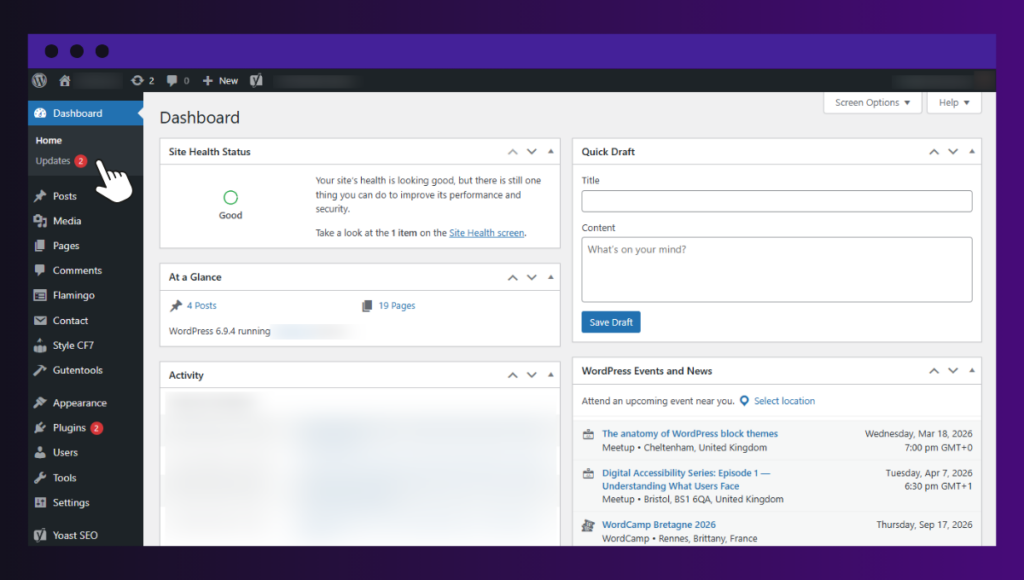
From time to time, you’ll have to update the software and the tools or add-ons that extend your WordPress site. This includes everything from your WordPress core to plugins and themes.
These updates normally fix bugs, improve features, and patch security issues.
Proactive security monitoring
To detect threats early or avoid them entirely, you have to monitor WordPress security continuously, too.
The best way to approach this is to:
- Review your hosting security setup. Is the PHPA widely-used programming language especially suited for web development. version updated? Does it cover all the basic web hosting security protections, like malware scans?
- Review user accounts and permissions.
- Verify the security of certain parts of WordPress, like the login page.
- Perform security updates.
Read this guide for WordPress security checks you can run in under one hour.
The thing is, threats that are detected early are the easiest and cheapest to fix. Proactive security monitoring is intended to help with that.
Backups
Backups are now industry standards for site management. They create a copy of your website so you can recover quickly from crashes, bad pluginA piece of software that adds specific features to WordPress. updates, security breaches, or human error.
For example, as a site owner, you can schedule daily backups and store them somewhere in a remote location. For others, it could be weekly or biweekly. Of course, how often you back up your site depends on how often it changes (think blogs or ecommerce sites).
Performance optimization
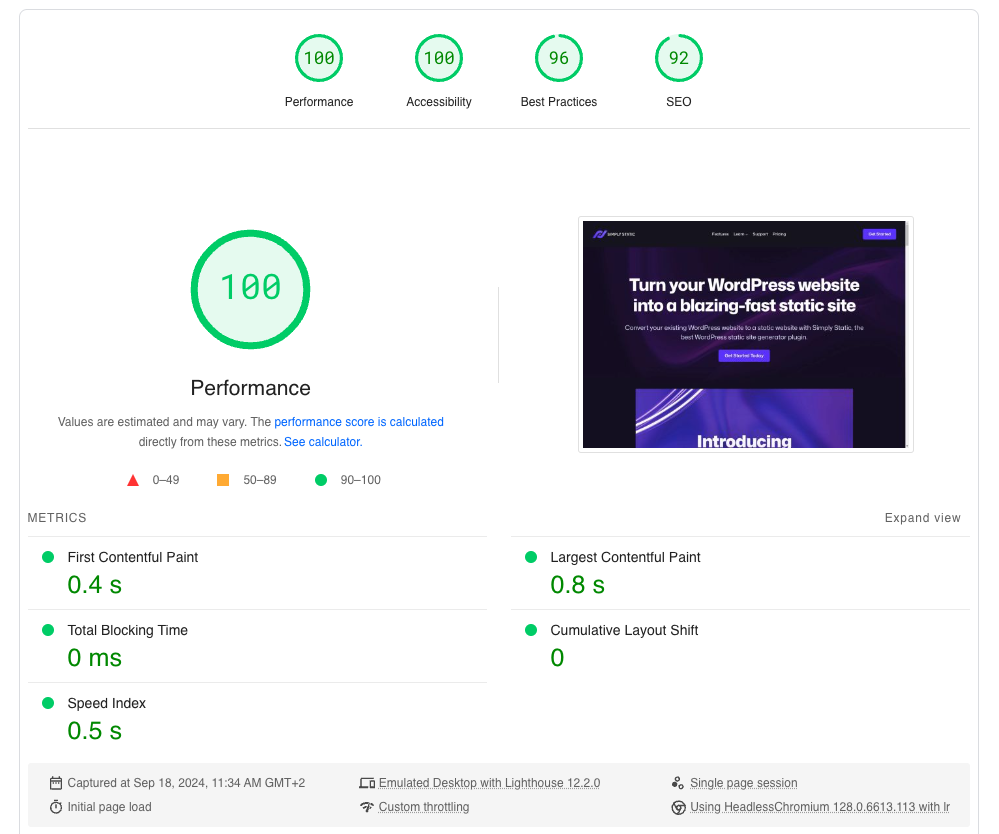
Aside from having just a well-managed web host, you still have to conduct regular performance checks to improve your site’s speed.
Some of which include:
- Checking your site speed.
- Caching.
- Image compression.
- Cleaning up a bloated database.
- Reviewing content analytics.
- Implement other optimization techniques that page speed test tools often suggest to reduce page load times.
Ensuring your site is as fast as possible will boost your user experience, customer retention rates, and search rankings.
SEO and functionality checks
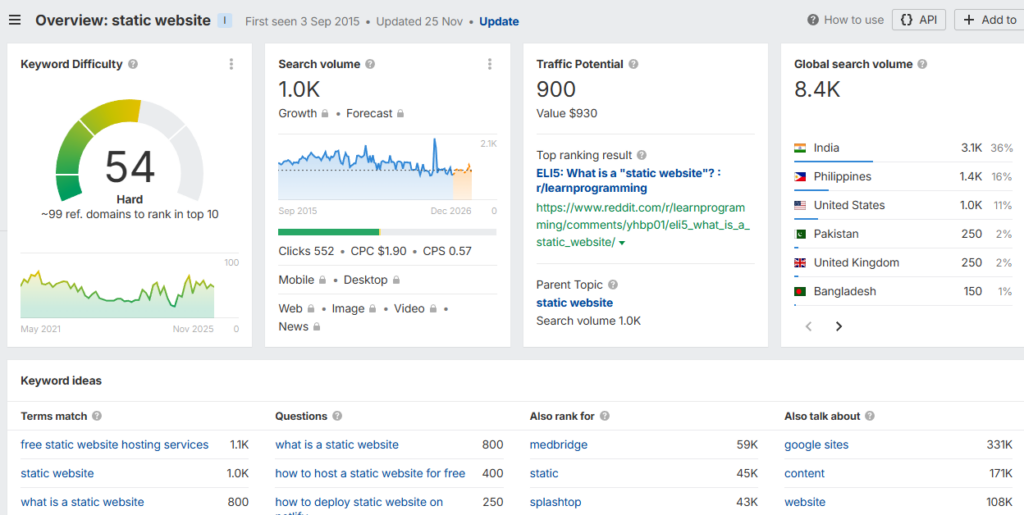
Maintenance also includes ensuring your site continues to work properly for both users and search engines.
This involves:
- Looking for broken links (404 errors).
- Testing forms.
- Testing your checkout process.
- Ensuring that other key features across your website are functioning properly.
Such small issues can easily go unnoticed if they are not checked regularly.
Uptime monitoring
Uptime monitoring services ping your site every minute. If it goes offline, you receive an immediate alert so you can investigate the cause before customers notice.
Generally, everything on your WordPress site, from the front end to the back end, needs to work smoothly to support your business goals and strategies.
Studies show that over 79% of hacked WordPress sites run outdated software, which is why regular maintenance is so important.
Here’s a table that summarizes routine WordPress site maintenance tasks:
| Why is it needed | How often | Why is it needed? | Risk if ignored |
| WordPress core updates | When a new version is released. | It fixes bugs, security patches, and adds new features. | Running old software is vulnerable. |
| Plugin and theme update | You should update at least once a week for routine maintenance. | To patch security, fix broken features, and ensure it is compatible with WordPress. | To patch security vulnerabilities, fix broken features, and ensure compatibility with WordPress. |
| Security monitoring and scans | It’s a tiered schedule: Daily for automated checks, Weekly/quarterly for manual review. | To detect malware and suspicious activities. | Unauthorized access by hackers could lead to data theft. |
| Offsite backups | Should be daily or weekly. | Data recovery. | Permanent data loss. |
| Performance optimization | Monthly. | To keep your site fast and responsive. | Slow-loading pages can hurt your SEO rankings and user experience. |
| SEO and functionality checks | Monthly. | It ensures pages, forms, and links are working properly. | Broken features, poor SEO performance, and lost traffic. |
| Uptime monitoring and downtime alerts | Continuous. | To detect downtime quickly. | Visitors cannot access your site, which is bad for business. |
So, why is WordPress maintenance an ongoing task that seems never-ending?
Why WordPress site maintenance keeps growing over time
WordPress site maintenance tasks tend to grow for two simple reasons. The first reason is connected to the number of plugins, integrations, and tools you add to your site. A very simple way to think about this is: the more plugins you add, the more updates and maintenance you create.
While these tools make it easy to add new features, each plugin also adds code that must be updated, audited, and monitored over time to mitigate vulnerabilities. Compatibility issues also become more likely when you have too many plugins to update.
Another reason why site maintenance persists is that WordPress runs dynamicallyActions or processes that occur in real-time, often without requiring a full page reload. For example, a search box that….
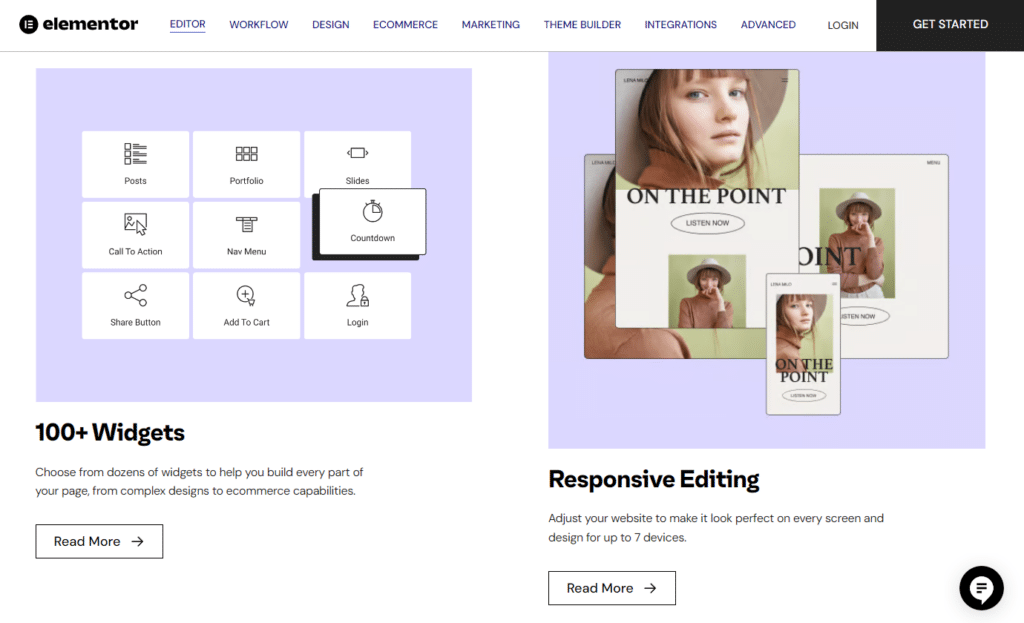
WordPress websites are inherently dynamic
If you have ever wondered why you always have to ‘take care’ of a WordPress site after you go live, this is the answer.
Many features, including WordPress itself, ecommerce stores, and comment sections, are dynamic. They generate content ‘on the fly’ from a live database using PHP and active plugins.
For example, adding more dynamic features through plugins doesn’t just add to your workload. The underlying software (WordPress) needs to be regularly updated to stay fast and secure. Without a proactive strategy, managing these updates can quickly turn into a huge maintenance plan or a costly recurring maintenance service contract.
How to reduce WordPress site maintenance (your options)
But what if creating a WordPress site was just a one-shot task, and you can’t afford a maintenance plan?
Unless you have a big customer who frequently pays a reasonable monthly maintenance fee, these are your options.
Option 1: Automate as much maintenance as possible
One of the easiest ways to reduce WordPress website maintenance is to automate as many routine tasks as you can.
WordPress and many hosting providers already offer tools and features that allow certain maintenance tasks to run automatically. Instead of checking your site manually every week, you can set up systems that handle basic maintenance for you.
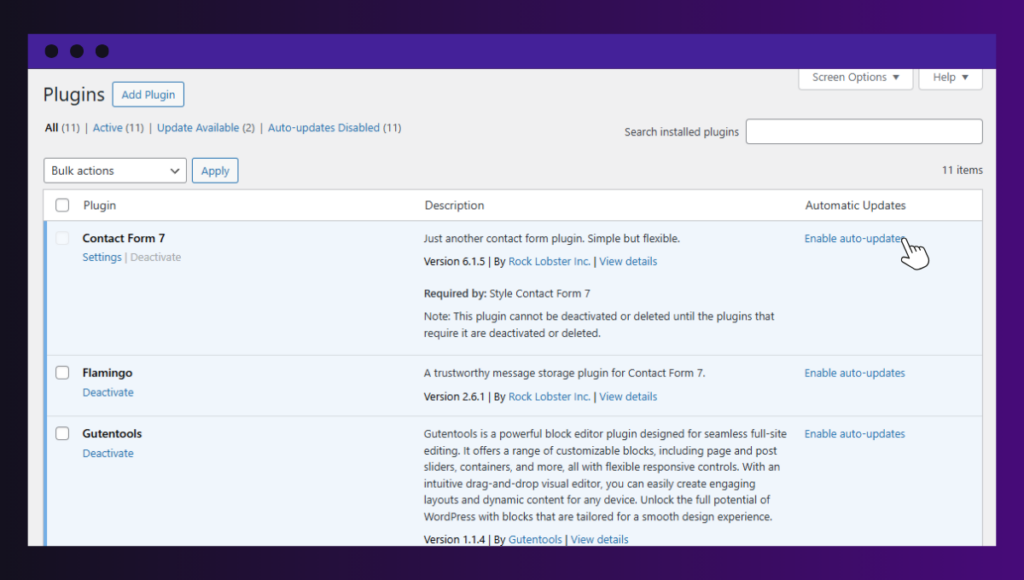
Automation methods
For example, you can automate tasks like the following:
| Task | Automation method |
| Updates | Enable automatic updates for WordPress core, plugins, and themes directly from the WordPress dashboard. |
| Hosting | Find a managed hosting provider that handles updates and basic maintenance for you. |
| Backups | Schedule automatic backups and store them off-site in cloud storage. |
| Security scan and protection | Use a security plugin that provides automated malware scans, firewalls, and security monitoring. |
| Database cleanup | Schedule automatic cleanup of post revisions, spam comments, and other unnecessary data to keep the database lean. |
| Performance optimization | Automate image compression, caching, and file minificationThe process of removing unnecessary characters from code files to make them smaller and improve website speed.. |
| Uptime monitoring | Use external services or integrated features that send you notifications immediately if your site goes down. |
However, it’s important to note that automation can only partially reduce WordPress site maintenance workload.
For example, if you had a broken link, none of the specialized plugins could tell you that. At the end of the day, you’ll still need a human element to make sure everything is working properly, and the plugins you use to automate maintenance don’t conflict.
Quick note: Many hosting providers offer one-click staging environments. So, before you apply significant updates to your live site, test them in a staging environment to prevent breakage.
Option 2: Outsource WordPress maintenance
If you can afford to pay someone to handle WordPress site maintenance, go for it. Many businesses choose to outsource website maintenance to WordPress experts so they can focus on running their business.
There are two primary ways people outsource the maintenance and management of WordPress sites.
One way is to pay for a managed WordPress hosting plan. This means the provider handles much of the technical work involved in running WordPress sites. The provider can also offer premium customer support that is above and beyond what is usually available with web hosting.
WordPress management service:
The other option is to use a WordPress management service.
When reviewing a maintenance service, the core areas you should consider are:
- Security monitoring.
- Backups.
- Site optimization.
- Customization and support.
The main downside, however, is that outsourcing WordPress site maintenance can quickly become expensive. This is especially true if the site you build was just a one-time project. In such cases, paying for a monthly maintenance service fee may not always make sense.
Option 3: Reduce plugins on your live site
The number of plugins running on your live site can either increase or reduce your WordPress site maintenance workload.
The common understanding is that WordPress sites that rely on too many plugins will likely spend more time updating them, checking compatibility, and fixing issues when something breaks.
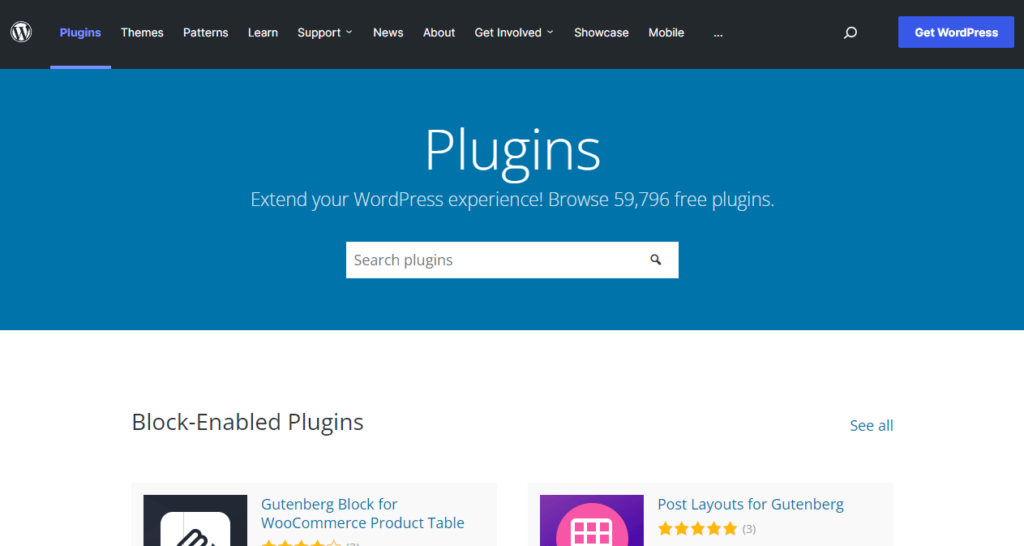
If you want to reduce WordPress site maintenance, it helps to scale that number down. But how many plugins are too many?
There isn’t a fixed number. Many business websites have roughly 20 to 30 plugins, and some run even more. However, the real problem begins when plugins overlap, become outdated, or add unnecessary complexity to your site.
So, how do you actually reduce the number of plugins on your live site?
Examine your plugins and remove unused ones
Every plugin on your site is a potential entry point for bugs, slowdowns, or other security flaws. To remove unnecessary plugins, start by reviewing every installed plugin on your site, not just the ones you actively use. This will reduce bloat and minimize your attack surface.
When you audit your WordPress plugins, ask:
- Is it actively maintained and up to date?
- Does another plugin already provide the same feature?
- Is this feature worth the long-term maintenance overhead?
- Could this plugin be slowing down your site?
If a plugin no longer serves your business needs, delete it. Deactivating isn’t enough. You need to make sure you fully remove it. You should also be careful with plugins that have not been updated for months or years. They tend to be vulnerable.
So let’s say you’re still looking at a long list of plugins and it doesn’t feel like enough. Well, what if there’s a way to turn your WordPress site into a maintenance-free site without affecting performance or security?
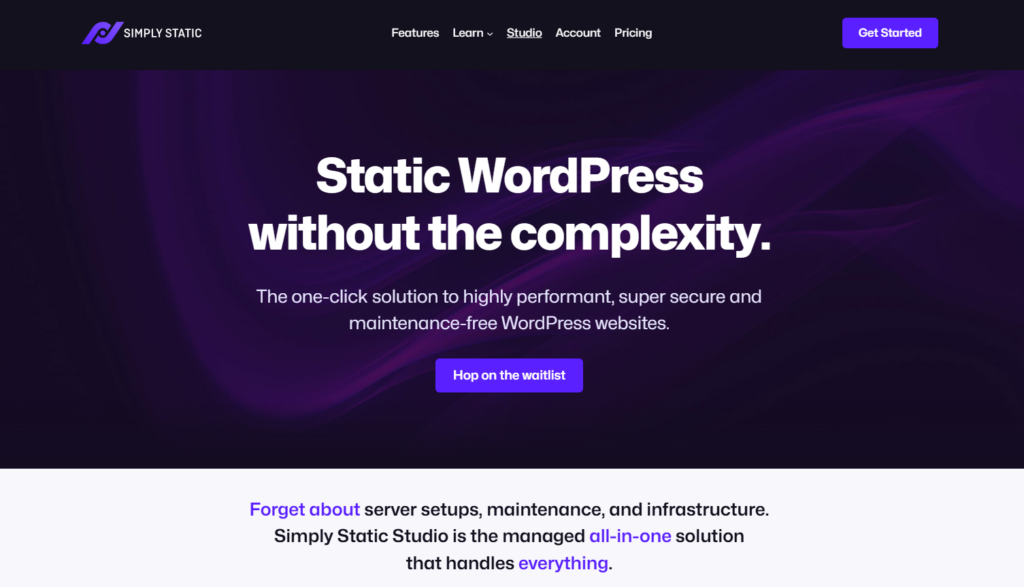
Option 4: Turn your WordPress site into a static site
By turning a live WordPress site into a static site, you can dramatically reduce ongoing maintenance. In many cases, this is the closest you can get to a ‘zero-maintenance’ WordPress setup.
To understand this, it helps to explain how most WordPress sites work in the background.
Dynamic WordPress vs static WordPress
A typical WordPress site is dynamic, which means that for it to build pages on demand, it must constantly:
- Perform server-side processing.
- Make database calls to pull content and settings.
- Execute PHP code through active plugins and themes.
These ‘live execution points’ are often the primary targets for hackers and the main cause for performance bottlenecks. Even with automation, as long as these components are exposed live on the web, they require constant monitoring, patching, and protection.
To truly remove the underlying maintenance burden from a dynamic WordPress site, we’ll make it static.
What happens when you make WordPress static?
In a static setup, your live site is decoupled from WordPress itself.
You still use WordPress as your private content management system (CMS). But instead of serving pages dynamically to every visitor, you generate static HTMLHyperText Markup Language. It’s the standard language for creating web pages. pages that are delivered directly to the browser.
With static WordPress:
- There is no live server-side PHP processing for visitors.
- The database and WordPress login page are hidden from the public.
- Common attack vectors (such as SQL injection) are virtually eliminated on the live site.
Because a static site has fewer moving parts, there’s much less for you to fix, update, or monitor every day.
This table shows how dynamic WordPress compares to static WordPress:
| Dynamic WordPress | Static WordPress |
| Your pages are generated in real time when someone visits the site. | Pages are pre-built and served as static HTML. |
| It requires frequent database calls and PHP code execution. | There’s no live database or server-side execution for visitors. |
| Plugins run actively on the live site. | Plugins stay on your private WordPress dashboard. Only the results are exported to your live site. |
| Login pages and admin areas are exposed online. This translates to a higher attack surface for hackers. | WordPress is completely hidden from the public. |
| Site requires ongoing monitoring, security patches, and updates. | Static site maintenance is virtually eliminated. Only a few plugins you use may need updating. |
If you want a platform that gives you a maintenance-free live site while keeping your WordPress backend secure, here is the best choice.
Use Simply Static Studio to make WordPress sites maintenance-free
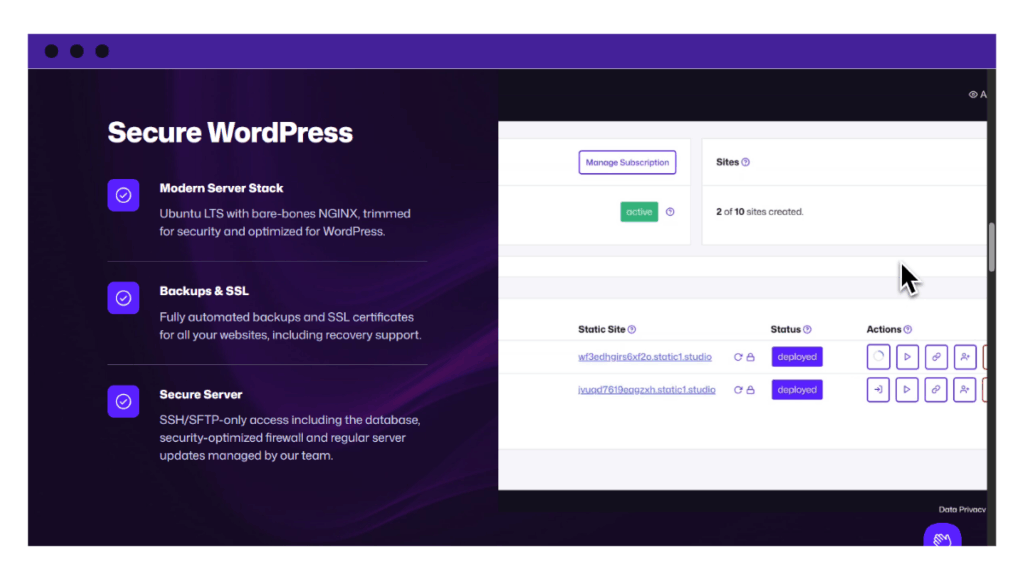
Simply Static Studio changes how WordPress works by hosting your site in a secure static environment. This eliminates much of the constant maintenance work you do to keep your dynamic WordPress site fast, highly secure, and stable.
Try static WordPress hosting free for 7 days
No credit card. No maintenance. No headaches.
Here’s how Static Studio reduces WordPress site maintenance:
- It separates your WordPress backend from the live site. Only a secure, static version of your WordPress site is published on the web. Your dashboard, plugins, and WordPress themes are kept private, accessible only to you.
- It removes the ‘hackable’ parts of WordPress. By hiding the database and PHP from visitors, you eliminate the most common entry points for hackers. This reduced the time you spend monitoring, scanning, and defending against attacks.
- It eliminates the need for performance and security plugins. Many plugins you’d use for caching, performance optimization, image compression, or firewalls are no longer necessary in a static site.
- It automates the technical stuff for you. The platform also manages SSLSecure Sockets Layer. A technology that encrypts the data transferred between a user and a website. certificates (and renewals), backups, core updates, and global CDNStands for Content Delivery Network. It’s a system of distributed servers that deliver web content quickly to users base… delivery on your behalf. You can focus on creating content in WordPress while Static Studio keeps your site up to date, secure, and always online.
This kind of setup gives you the peace of mind that comes from knowing your site isn’t only faster. It is virtually immune to traditional WordPress web attacks.
How to make your existing WordPress site static with Simply Static Studio
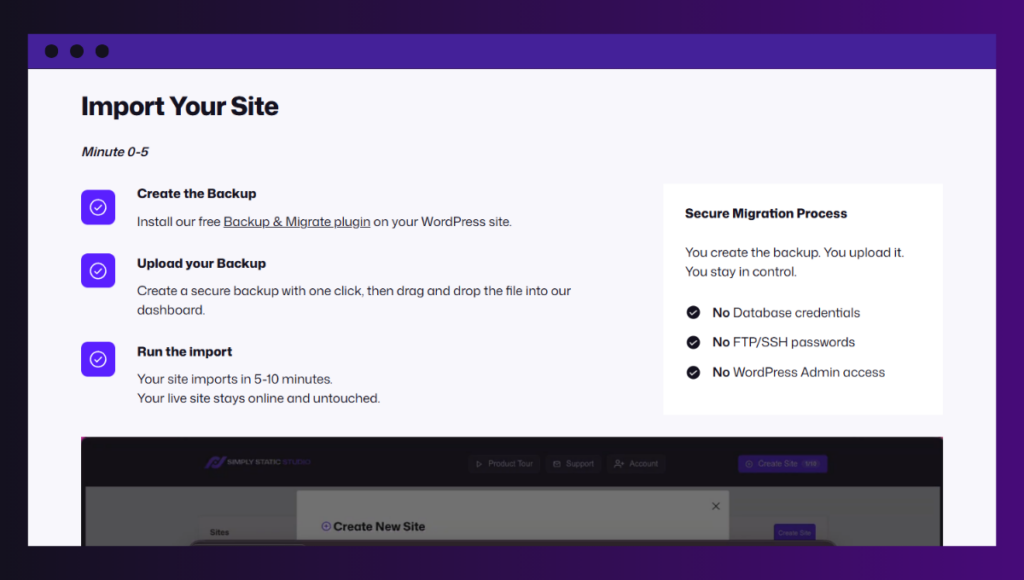
This is how easy it is to get started in Static and create maintenance-free websites:
- Easy site migration. If you already have a site, Simply Static Studio allows you to import a backup file of it.
- ExportThe process of saving the files and data from your WordPress site to create a static site. your site. With your backup file in hand, add it to Simply Static Studio, and it will create a static version of your site on a testing domain. You can then log in to your WordPress dashboard via a magic login link.
- Connect to your domain. After you’ve tested your site, you can connect your domain from the Studio dashboard, and your site is ready.
With this setup, you keep the WordPress experience you are familiar with. But without the ‘moving parts’ that normally cause maintenance headaches.
Is Simply Static Studio right for you? This platform works best for content-driven sites where content doesn’t change frequently. This includes blogs, news sites, business websites, portfolios, landing pages, documentation, brochures, and so on.
FAQs about WordPress site maintenance
Do WordPress websites need maintenance?
Yes, WordPress websites require regular maintenance to stay secure, fast, and reliable. This includes performance checks (like site speed), security updates, backups, plugin reviews, fixing broken links, and monitoring content performance.
How often should I perform maintenance on my WordPress site?
Some WordPress site maintenance tasks should happen weekly or monthly, while others should run continuously.
For example, plugin and WordPress theme updates are usually checked weekly. Backups should run daily or weekly. Security monitoring and uptime checks should run continuously. Performance checks and SEO audits are often done monthly.
The exact schedule depends on how complex your website is and how often you publish content.
How do you put WordPress into maintenance mode?
For example, you can create a maintenance page for your blog to inform readers when your site is being updated. Alternatively, use a WordPress maintenance mode plugin to display a custom message while restricting access to non-admin users. Those admins who are logged in can still access the full site while maintenance mode is active.
What do WordPress site maintenance services include?
For a fee, WordPress maintenance services offer various options, including WordPress updates, security monitoring, malware scans, automated backups, and site optimization. The scope of the services depends on the WordPress service you choose. For example, some services also offer small content updates or website improvements as part of their plans.
Does static WordPress remove plugin updates?
Not completely, but it greatly reduces the urgency and risk of updating plugins. You can still update plugins inside the WordPress dashboard, but those updates are less urgent because the public site does not rely on a live dynamic system.
Reduce your WordPress site maintenance today
Reducing WordPress site maintenance is more sustainable than managing it forever. By following this guide, you’ll find four effective ways to lower your workload:
- You can automate routine tasks like updates, backups, and monitoring using specialized plugins. This helps, but it requires manual oversight when things break.
- Outsource maintenance work. However, paying for a service adds a recurring cost.
- Reduce plugins to lower the chances of conflicts, slowdowns, and security flaws.
- Go static. It’s the most effective way to eliminate live site maintenance.
As long as a WordPress site is dynamic, it requires a live database and active PHP code to be constantly monitored and protected. Simply Static Studio solves this by separating your WordPress backend from the web.
By converting your site into a static version, your new site becomes maintenance-free, much faster, and virtually immune to traditional WordPress attacks. Getting started is as easy as uploading a backup file of your existing WordPress site.
Try static WordPress hosting free for 7 days
No credit card. No maintenance. No headaches.
Table of Contents